Adobe Podcast Enhance vs. Audio Audit (comparison)
 Damian Moore, Last updated: 15 October 2026
Adobe Podcast Enhance and Audio Audit are both one-click tools you point at an episode, and they do close to opposite things with it. Enhance Speech makes your voice sound better. Audio Audit tells you whether your episode is actually fit to publish, and then fixes the specific things that aren’t.
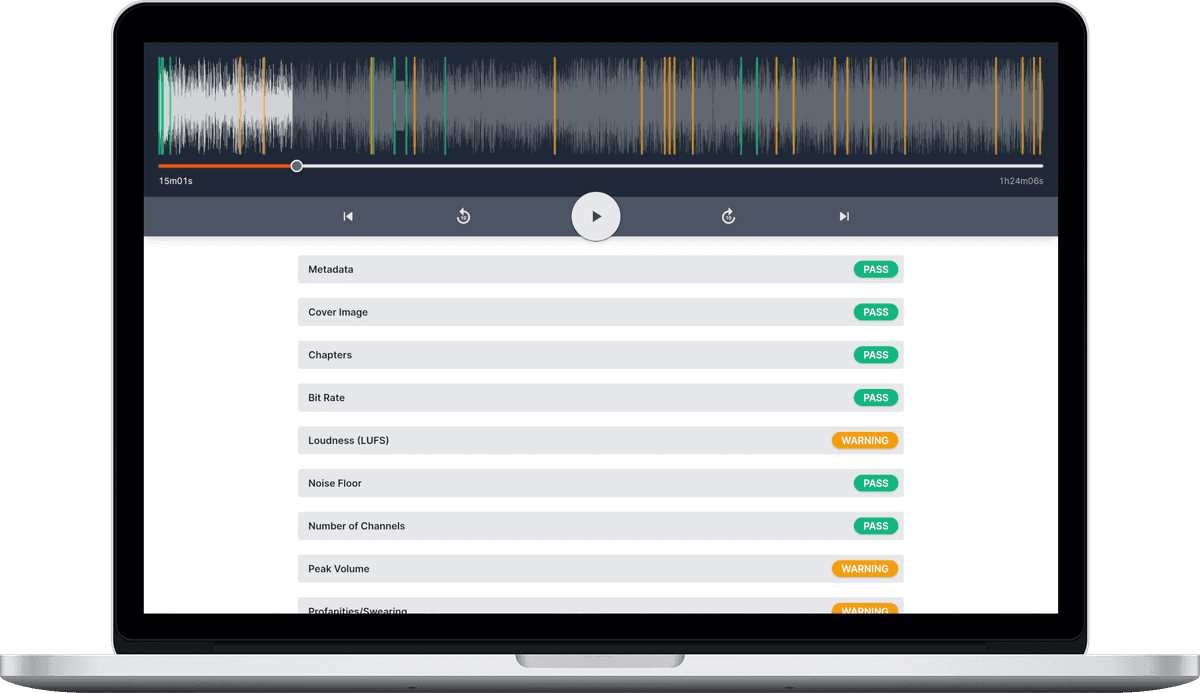
Enhance Speech is Adobe’s free AI filter for spoken audio: upload a recording and it strips out background noise, room echo and even background music, one click, no settings to learn. Adobe’s own promise for it is that it “makes voice recordings sound as if they were recorded in a professional studio”. Audio Audit started life as the other half of that job — checking a finished episode is up to standard, marking what’s wrong and where, and keeping an eye on your feed afterwards — and as of August 2026 it fixes things too. With Enhancements, it applies noise reduction, speech levelling, loudness normalisation and clean metadata, and then you re-run the report to prove the numbers actually moved. Analyse, fix, verify.
The short version: Enhance Speech changes how your episode sounds; Audio Audit measures what your episode is.
This page was last fact-checked against podcast.adobe.com in August 2026.
Comparison Overview
File and Metadata Checks
| Feature | Adobe Podcast Enhance | Audio Audit |
|---|---|---|
| Metadata checking | ❌ No | ✅ Yes |
| Cover art checking | ❌ No | ✅ Yes |
| Chapter checking | ❌ No | ✅ Yes |
| Bit-rate checking | ❌ No | ✅ Yes |
| Sample-rate checking | ❌ No | ✅ Yes |
| Sample-width checking | ❌ No | ✅ Yes |
| Channel count checking (stereo/mono) | ❌ No | ✅ Yes |
Analysis and Detection
| Feature | Adobe Podcast Enhance | Audio Audit |
|---|---|---|
| LUFS/loudness checking | ❌ No | ✅ Yes |
| Peak volume checking | ❌ No | ✅ Yes |
| Noise floor checking | ❌ No, though Mic Check listens to your room before you record | ✅ Yes |
| Unwanted noise detection (coughs, knocks, pets, etc.) | ❌ No, Enhance Speech removes noise rather than flagging it | ✅ Yes, dozens of noise types |
| Filler word detection (uhm, ahh, etc.) | ❌ No, you spot them yourself in the transcript | ❌ No |
| Long silence detection | ❌ No, though pauses show up in the Studio transcript | ✅ Yes |
| Restarted sentence detection | ❌ No | ✅ Yes |
| Swearing detection | ❌ No | ✅ Yes |
| Automatic transcriptions | ✅ Yes, in Adobe Podcast Studio (six languages) | ✅ Yes |
Enhancement and Editing
| Feature | Adobe Podcast Enhance | Audio Audit |
|---|---|---|
| Audio file modification | ✅ Yes | ✅ Yes (Enhancements) |
| One-pass enhancement of a finished episode | ✅ Yes (Enhance Speech), in one click | ✅ Yes — measured processing, no generative AI |
| Noise reduction | ✅ Yes, plus echo — and background music on Premium | ✅ Yes, profile measured from your recording |
| Speech levelling (compression) | ✅ Yes, voices are balanced as part of the filter | ✅ Yes |
| Loudness normalisation (LUFS targets) | ❌ No, there’s no target to set | ✅ Yes, presets for podcasts, YouTube and ACX |
| Metadata & cover art writing | ❌ No | ✅ Yes, without re-encoding audio |
| Automatic filler word removal | ❌ No, you delete them in the transcript by hand | ❌ No |
| Automatic silence removal | ❌ No, pauses are cut by hand in the transcript | ❌ No |
| Transcript-based editing | ✅ Yes, in Studio, on the free plan too | ❌ No |
Monitoring and Reporting
| Feature | Adobe Podcast Enhance | Audio Audit |
|---|---|---|
| Automatic reports by email | ❌ No | ✅ Yes |
| RSS feed monitoring | ❌ No | ✅ Yes |
| Scoring over the long-term across shows and team members | ❌ No | ✅ Yes |
Plans and Pricing
| Feature | Adobe Podcast Enhance | Audio Audit |
|---|---|---|
| Free trial | ✅ Yes, 30 days of Premium | ✅ Yes |
| Free tier | ✅ Yes, 1 hour of Enhance Speech a day | ✅ Yes, free credits every month |
| Pricing model | Free tier, then a monthly or annual Premium subscription | Pay-as-you-go credits or subscription — see /pricing |
| One-off credit top-ups (no subscription needed) | ❌ No — Premium subscription only | ✅ Yes — credit packs valid 12 months |
Noise, Echo and Music: Adobe Wins This Outright
Let’s start with the part where Adobe is simply better, because it isn’t close and pretending otherwise would waste your time.
If you have a recording that sounds terrible — a guest on a laptop microphone, an interview in a café, a lecture in a hard, boxy room — put it through Enhance Speech. It is free, it takes one click, and it will rescue material that most tools would give up on. Adobe’s own description of it is “Remove reverb, chatter, and background music”, and all three of those are real — though it’s worth knowing which of them are free. Noise and room echo are handled on the free tier, and Enhance Speech’s one-click pass takes background music with it. The controls over that removal are another matter: the dedicated music remover, the music slider and the stem downloads all sit behind the Premium subscription. We don’t do reverb removal at all, and we can’t lift music off a track that’s already mixed at any price.
Adobe has since gone further. As of its March 2026 update, Premium users get source separation: independent sliders for speech, background noise and music, and the ability to download those as separate stems to carry into another editor. Removing a copyrighted backing track from footage you can’t re-edit is a genuinely hard problem, and Adobe solves it in a browser tab.
Audio Audit comes at noise from two directions, and it’s worth being clear about which does what. First, detection: it measures the background noise floor so you can see when a signal is simply too dirty to save, and an AI classifier that recognises dozens of types of unwanted noise marks the one-off events — coughs, sneezes and children, through to engines, car alarms, sirens and phone notifications. Detection tells you what is wrong and where, down to the timestamp, and leaves the decision to you. Sometimes a noise is ambience and you’ll want to keep it.
Second, enhancement removes the constant background for you. Noise reduction builds a noise profile from the quietest moments of your recording — your room’s particular hum, hiss and air conditioning rather than a generic guess — and subtracts it frequency by frequency, with a soft gate that lowers the level between phrases instead of hard-muting them, so pauses still sound like a room rather than a void. It is deliberately capped at 12 dB, safely below the point where spectral processing on speech starts to sound underwater. If your recording is noisier than that, the honest fix is at the source, and we’d rather tell you than quietly make your audio worse.
That cap is the whole difference in miniature. Adobe will go further than we will on a bad recording, because its filter is aiming at a sound. We stop where subtraction stops working.
Adobe Podcast Isn’t Only Enhance Speech
Enhance Speech is the famous part, but it isn’t the whole product, and a comparison that pretended otherwise would be a poor one.
Studio is Adobe’s browser-based recorder and editor. It records you and your remote guests as separate 16-bit 48 kHz WAV tracks, transcribes the result with the same engine Adobe Premiere Pro uses, and then lets you edit the audio by editing the transcript — delete a sentence in the text and the audio goes with it. Transcript-based editing is on the free plan, which is worth knowing; downloading those separate speaker tracks is Premium. On top of that sit a royalty-free music library, audiograms for social, clip exports, video editing and multitrack import from Zoom, Restream and the rest. It’s currently badged as a beta, and Audio Audit has no answer to any of it, because Audio Audit has no editor at all.
There’s also Mic Check, which listens to your microphone before you record and tells you whether to move closer, turn the gain down or do something about the noise in the room. Fixing a problem at the source beats fixing it in post every time, and it’s free. It now sits off to the side of Adobe’s line-up rather than in it — the page is still live, but Mic Check has dropped out of the homepage tool grid, the navigation and the current plan comparison — so treat it as a bonus you go looking for rather than something Adobe is still pushing.
What Adobe Podcast Studio doesn’t do is find the fluff for you. There’s no automatic filler-word removal in Studio and no automatic silence trimming: the transcript makes ums and awkward pauses easy to see, and then you delete them yourself. Adobe’s own beginner’s guide to text-based editing suggests saying a made-up keyword — the author is partial to “banana” — whenever you fluff a line, so you can search for it later. It’s a lovely tip, and it also tells you exactly where Studio’s automation stops.
A caveat, and it’s an important one: that’s a statement about Adobe Podcast rather than about Adobe. Premiere Pro’s text-based editing will detect “uh” and “umm” filler words and bulk-delete them, and Audition has had automatic silence stripping for years. If you already work in either, you have those tools. They just aren’t part of the free browser app this page is about — a distinction that comes up again below.
For what it’s worth, Audio Audit doesn’t remove filler words or silences either. It detects long silences, timestamps them and tells you how many you have; filler words it doesn’t detect at all. Detection and removal are different jobs, and we only do the first one.
What “Studio-Quality” Means, and What It Costs
Adobe’s marketing for Enhance Speech describes a destination rather than a process: audio that sounds “like it was recorded in a soundproofed studio”. That’s an honest description of the goal, and it’s worth thinking about what reaching it implies. Your café recording was not made in a soundproofed studio. Something has to decide what it would have sounded like if it had been.
That decision is why enhanced audio can sound worked-on, and Adobe is refreshingly unbashful about it. Its own release notes for v2 promise “More natural results with fewer artifacts”. The Premium strength control is described, in Adobe’s words, as a way to “dial in the perfect balance of studio-quality and natural environment sound”. And the March 2026 source-separation announcement frames the old behaviour as “settling for a single processed track”. The slider exists precisely so you can pull the effect back when it’s gone too far, and it usually can be pulled back far enough.
The catch is who gets the slider. Strength adjustment is a Premium feature. On the free tier, Enhance Speech is all or nothing: you take the result you’re given or you don’t use it.
Audio Audit’s enhancement is deliberately narrow and deliberately measured. Four things — noise reduction, speech levelling, loudness normalisation and metadata writing — in any combination, running as a single job on a single file: decoded once, processed once at full resolution, encoded once, so there’s no compounding quality loss between steps. Every stage measures your recording before it decides what to do, in a fixed and conventional order. And there is no generative AI anywhere in it. Nothing is synthesised, nobody’s voice is reconstructed, and the same input gives you the same output every time. When it finishes, the results page shows you exactly what was measured and what was done.
That’s a real trade-off, not a hedge. Adobe will make a rough recording sound better than we will. Audio Audit will tell you precisely what it changed, and prove it.
Loudness: Enhance Speech Never Tells You the Number
The standard loudness for podcasts is -16 LUFS, and our customers tell us it’s the number one thing they’re checking their reports for.
Credit where it’s due: Enhance Speech does level voices. Adobe describes the tool as improving clarity “by reducing background noise and balancing voices”, and its music remover page talks about fine-tuning “dialogue leveling” — so a recording that came in with a loud host and a quiet guest will come out more even than it went in. That’s genuinely useful, and it’s more than a plain noise gate.
What you can’t do is aim it. Adobe publishes a complete feature matrix for Enhance Speech — audio, video, bulk upload, adjust enhancement strength, maximum file size, maximum duration, maximum hours per day — and there is no loudness setting anywhere in it, on either plan. There’s no target to choose, no true-peak ceiling to set, and no measured figure reported when the job finishes. You get a file back, not a number. If -16 LUFS matters to you, Enhance Speech is a step in your chain rather than the end of it.
The same caveat applies here as it did to the editor: this is a statement about Adobe Podcast, not about Adobe. Premiere Pro and Audition have had proper loudness matching for years, LUFS targets and all — Adobe knows exactly how to do this. It just isn’t part of Adobe Podcast, which is a different product with a different bill.
Audio Audit measures instead of assuming. Volume normalisation ships with presets for podcast platforms (-16 LUFS), YouTube (-14 LUFS) and ACX audiobooks (-19 LUFS), all with true-peak-safe limiting and a custom option if your target is something else. It’s a two-pass measurement built on the same ITU-R BS.1770 loudness model broadcast uses: measure the whole episode, then apply a single constant gain change, so normalisation changes how loud your episode is and never how it breathes. Compression is available alongside it, with the threshold set from your own measured speech level rather than a fixed number.
Then the report closes the loop. Run a fresh analysis on the finished file and the loudness figure lands next to the true peak, the noise floor, the metadata and the cover art — a full audit of the artefact, rather than a setting you hoped a filter had taken care of.
What Happens After You Download
Enhance Speech hands you back a cleaner file, and that’s where it stops. Nothing writes your episode title, artist or copyright into the tags; nothing embeds your cover art; nothing tells you whether the bit rate, sample rate or channel layout will satisfy a podcast directory. It was never meant to — it’s a filter, not a publishing step.
Audio Audit picks up exactly there. It reads the file that exists and tells you whether it’s fit to publish: bit rate, sample rate, sample width, channel count, peak level, noise floor, loudness, swearing, restarted sentences, long silences, missing metadata, cover art that podcast directories will reject. Where a check fails, the enhancement that would fix it comes pre-ticked on the report — and if metadata is the only thing you change, the audio isn’t re-encoded at all.
Then it keeps going. Point Audio Audit at your RSS feed and it re-checks the file your host actually served, which isn’t always the file you uploaded — hosts re-encode, and a re-encode can shift your loudness and clip your peaks long after every tool in your production chain has finished and gone home. Reports arrive by email, scores build up across episodes, shows and team members, and the trend tells you whether your audio is quietly getting worse. None of that exists in Adobe Podcast, because none of it is what Adobe Podcast is for.
Paying For It
Adobe’s free tier deserves saying plainly, because it is unusually generous. One hour of enhanced speech a day, every day, files up to 30 minutes and 500 MB, and no trial clock ticking in the background. Studio is free too, with projects up to 30 minutes and two downloads a day, and Mic Check costs nothing at all. If your show is half an hour a week, you could run its audio through Adobe indefinitely without paying anybody. Very few tools in this space give away that much.
The free tier’s limits are worth knowing before you rely on it, though. Anything longer than 30 minutes has to be cut into chunks first, which for a weekly interview show is the genuinely annoying one. Files go through one at a time rather than as a batch, it’s audio only rather than video, and there’s no strength adjustment — which, as above, is the control you’d most want on a recording the filter has been heavy-handed with.
Past those limits there is exactly one step up. Premium raises Enhance Speech to four hours a day with files up to two hours and 1 GB, adds bulk upload, video, the strength and source-separation controls and the stem downloads, lifts Studio’s download limits, and throws in Adobe Express Premium for making your cover art.
What it costs is oddly hard to pin down. Adobe doesn’t print a price on its plans page at all, and the only figure on Adobe’s own site that we could find — $9.99 a month, or $99.99 a year paid annually, after a 30-day free trial — sits in an older guide page rather than anywhere Adobe currently maintains. Treat it as a strong steer rather than a quote, and check the sign-up flow for what you’d actually be charged. All as of August 2026.
What there isn’t is a middle. Adobe’s plans page offers two things: the free tier, and a subscription billed monthly or annually. There’s no one-off purchase and no credit pack — no way to pay Adobe once, get a single long episode over the free tier’s limits, and walk away.
Audio Audit runs on credits, with free credits every month, monthly plans if your usage is steady, and one-off top-up packs valid for 12 months if it isn’t. Reports and enhancements draw on the same balance — a full clean-up costs about the same per minute as a full standard analysis — and you see the estimate before you commit. Current prices live on the pricing page rather than in this article, because comparison pages go stale and pricing pages don’t.
So the shape of the two bills is different. Adobe is free until it isn’t, and then it’s a subscription you’re paying in the quiet months as well as the busy ones. Audio Audit is happy to be occasional: buy a pack of credits, check and fix the episodes in front of you, and come back in three months if that’s when you next need it.
So Which One?
If you have a recording that sounds bad — really bad, the kind where you’re wondering whether the episode is publishable at all — use Enhance Speech. It’s free, it’s one click, and on room noise, echo and stray background music it will beat us. That’s not a grudging admission; it’s the reason the tool became famous.
If you want to know whether the finished file is actually up to standard, with the measurements to back it up, fix the specific things that aren’t, confirm the numbers moved, and then keep an eye on every episode you publish from here on, that’s Audio Audit.
And they chain together well. Rescue the voice in Adobe, then run the result through Audio Audit to normalise it to -16 LUFS, write the tags and cover art, and check the finished file against everything a directory cares about — followed by one more look at the feed, once your host has had its turn with it.
Want the full detail on what Audio Audit’s enhancements do? See the Enhancements announcement and the Enhancing Audio guide, or head to the Pricing page to see what a report or an enhancement costs for your episode length. Comparing other tools too? We’ve written the same honest breakdown for Auphonic, Descript and Cleanvoice.
Photos courtesy of Ze Paulo