Podcast Mastering Checklist: Loudness, Peaks and Noise Before Upload
 Damian Moore, Last updated: 20 November 2026
Mastering a podcast is a lot less mysterious than mastering music. Nobody is chasing a sound or competing to be the loudest track on the album. The job is to take an edited episode and make it consistent, clean and correct before it goes out: the right loudness, no clipping, no hiss, the right file format, and tags that tell apps what it is.
This checklist works in any editor. Each step has a number to aim for, so you can tell whether it’s done rather than whether it sounds done after a long day.
We wrote a step-by-step mastering guide for Reaper users. This is the same ground with no particular tool in mind.
Work in This Order
The order matters because each stage changes what the next one sees.
- Clean-up: noise reduction, a high-pass filter and any repair on each voice track, before anything is made louder.
- Tone: light EQ if a voice is boomy or harsh. Small moves.
- Compression, which evens out the gap between quiet words and loud laughs, so the listener doesn’t have to ride the volume.
- Loudness: one gain change to bring the whole episode to target.
- Limiting: a true-peak limiter catches the few peaks the loudness change pushed too high.
- Export and tags: the file format, then the metadata and artwork that travel with it.
Doing loudness before clean-up raises the noise along with the voice. Doing loudness before compression means the target shifts once compression changes the average. Limiting last means nothing afterwards can push a peak back over.
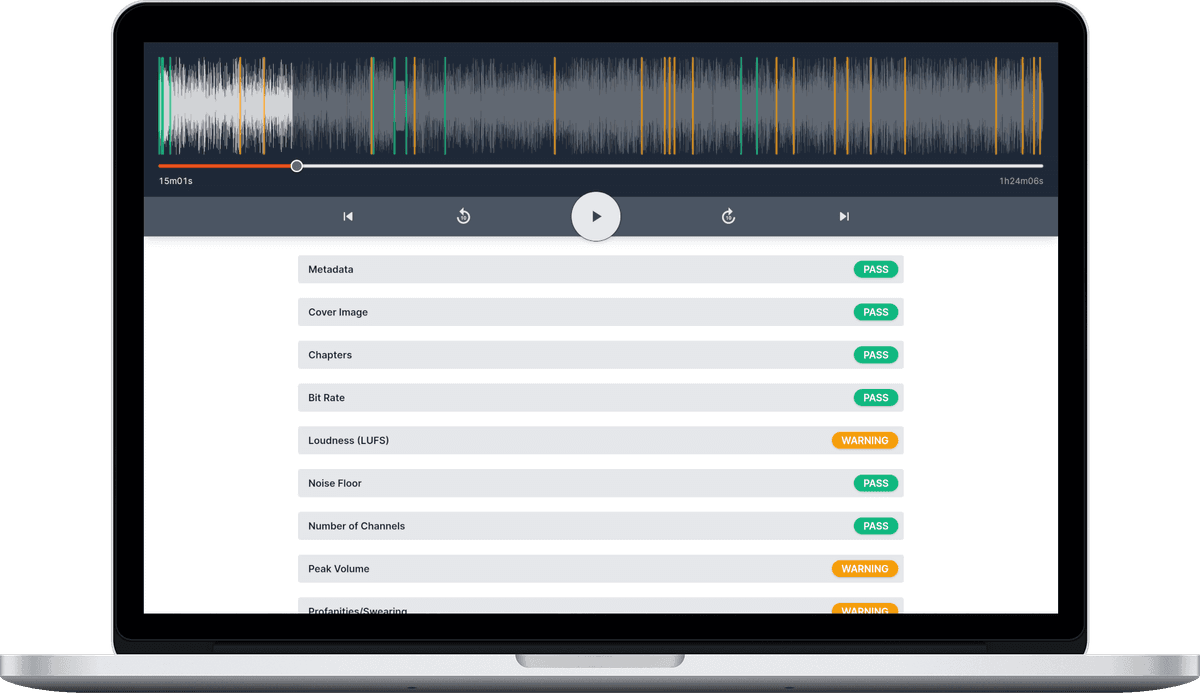
Audio Audit’s enhancements follow the same order in one pass: noise reduction measured from your own recording, speech-tuned compression, then normalisation to -16 LUFS with a -1 dBTP true-peak limiter, and the tags and cover art written last.
The Checklist
| Step | Aim for | Why |
|---|---|---|
| Loudness (LUFS) | -16 LUFS integrated (pass -17 to -15); -19 LUFS for mono | Sits level with other shows, so listeners don’t turn a quiet episode up and then get blasted by the next one or a phone notification. It’s also Apple’s recommendation |
| True peak | Limiter ceiling -1 dBTP; true peak at most -1 dBTP | Leaves headroom for MP3 and AAC encoding, which push peaks up. A sample-peak meter can read lower than what actually plays back |
| Noise floor | Below -60 dB | Hiss and hum go unnoticed in the pauses, even on headphones in a quiet room. It’s also ACX’s limit for audiobooks |
| Sample rate | 44,100 or 48,000 Hz | Covers everything the ear can hear. Higher rates only add size, and converting between the two is a resample you don’t need |
| Bit rate | 128 to 256 kbps MP3 | Clean speech at a sensible download size. Much lower sounds muffled and glitchy; much higher costs listeners data and storage for nothing |
| Sample width | 16-bit for WAV delivery | Gives 96 dB of range, more than the ear needs. Higher widths add size, not audible quality, and 8-bit sounds grainy |
| Channels | Stereo, with neither side much quieter | Stereo makes music and sound design richer, and voices panned slightly left and right are easier to tell apart. A quiet side is lost on anyone listening with one earbud |
| Silence at the start | 0.5 to 1 second | Apps and wireless earbuds waking from standby can swallow the first moment, so the first word isn’t clipped. Much longer and listeners think the file is broken |
| Silence at the end | 1 to 5 seconds | Tells listeners the episode is over and leaves a breath before the next one. Long dead air, often left after edits, leaves them wondering if more is coming |
| Metadata tags | Title, album (show name) and artist at least | Shown by almost every player, and it’s the only episode info people see when they download the MP3 from your site or are sent the file |
| Cover image | Square, 512 to 3,840 px, under 0.5 MB | Shows when the file is downloaded or shared outside a podcast app, and stays sharp without bloating every download |
| Explicit flag | Marked explicit if there’s any swearing | Directories let listeners filter explicit episodes out, and Apple asks for any episode with swearing to be flagged |
The channels row has two parts. A mono episode is fine for many shows, and it’s only a note in our reports. A stereo file where one channel is much quieter than the other is a real fault, usually a mic panned to one side by mistake, and it fails the quiet channel check.
Why -16 LUFS Is the Safe Default
Apple’s podcast audio requirements ask for around -16 LUFS, with a tolerance of 1 dB either way, and true peaks no higher than -1 dB. Most of the podcast industry has settled on the same figure. Music streaming services normalise to -14 LUFS, and YouTube is commonly measured at the same, which is why some shows publishing a video version master that a little louder. Broadcast standards are quieter still: -23 LUFS in Europe.
If you publish to podcast apps, -16 LUFS is the right default. Our LUFS article lists the targets by platform, and if your network asks for something different you can set your own range in a custom standard.
Check the Exported File, Not the Project
The meters in your editor measure the project. Listeners get the exported file, and the two can differ. Encoding to MP3 nudges peaks up, export presets can change the sample rate without telling you or drop to mono, and tags have a habit of being left on “Untitled”.
So check the file you’re about to upload. An Audio Audit report runs every row of the checklist above on the file itself, alongside swearing, long silences, restarted sentences and unwanted noises, and shows which checks are Required for your standard and which are notes. If you’d rather not do the clean-up, compression and loudness steps by hand, our enhancements do them in one pass and write the tags and cover art into the file. Run a fresh report on the result to confirm it passes.
If your host re-encodes uploads, it’s also worth checking what the feed serves. Audio Audit can watch your RSS feed and report on each new episode as it’s published, so a change on the host’s side shows up in the next report.
To run the checklist on your next episode, create a free account and upload the file. Every account gets free credits each month.
Photos courtesy of James Kovin