How to Clean Up Listener Voice Notes Before They Go on Air
 Damian Moore, Last updated: 7 November 2026
A listener has sent in a story that’s perfect for the episode. It’s 40 seconds long, recorded on a phone in a kitchen with the extractor fan running, and when you drop it in after your host it sounds like a different show. It’s half as loud, the voice is muffled, and the fan comes in and out with every word.
Voice notes are worth the effort. They bring other voices into a show that would otherwise be two people in a room, and listeners love hearing each other. They just need a different kind of attention from the rest of the edit. The aim is a clip that sits comfortably next to your host while still sounding like a real person on their phone, because that’s part of its charm.
Why Voice Notes Stand Out
Four things work against a voice note before you’ve touched it:
- The phone’s microphone is built to pick up speech at arm’s length in any room, so it hears the room as well as the voice.
- The room is usually a kitchen, a car or a street, with hard surfaces and background noise.
- The level depends on how close the listener held the phone, and it varies from one note to the next.
- The format is often heavily compressed. A WhatsApp voice note is typically Opus audio in an Ogg file, mono, at a 16 kHz sample rate and somewhere around 16 to 32 kbps. A 16 kHz file can’t hold anything above 8 kHz, which is why voice notes sound dull next to a studio mic.
You can do a lot about the level and a fair amount about the noise. You can’t put back the treble that the format threw away, so don’t try to EQ it back in. A big high-frequency boost on a voice note mostly brings up the codec’s artefacts.
Ask for the Original File
The cheapest improvement happens before the note reaches you. If your show asks for voice notes, tell listeners how to send them:
- Record in the quietest room they can find, ideally one with soft furnishings, and away from fans, fridges and open windows.
- Hold the phone a hand’s width from the mouth, the way they’d hold it on a call, and not on speakerphone across the room.
- Record with the phone’s own voice recorder app, then send the recording as a file (by email, or in WhatsApp as a document) rather than as a hold-to-talk voice message. A recorder app’s file has usually been through far less compression.
A voicemail page on your website is easier still for most listeners. SpeakPipe and Telbee both give you a page or a widget where a listener taps record in their phone’s browser, with no app to install and no account to create, and the message arrives in your inbox as a file to download. It skips WhatsApp’s voice-note compression entirely. Telbee’s paid plans let you choose the recording bitrate. SpeakPipe doesn’t publish its format, so send yourself a test message and check the file before you rely on it. The free plans cap the length (90 seconds on SpeakPipe, one minute on Telbee), which is enough for a question but short for a story.
For a contribution long enough to be a segment, such as a listener interview, send a guest link from a remote recording service like Zencastr instead. It records each person on their own device and uploads the file afterwards, so the listener’s track doesn’t suffer when their connection drops.
Some listeners will still send a WhatsApp note, and that’s fine. It just means more of the next steps.
Convert It Before You Edit
Convert every note to an uncompressed WAV at your session’s sample rate before you do anything else. That way every later step works on a lossless file and you don’t stack one lossy encode on top of another. In Audacity 3.4 or later, open the note with File > Open, then choose File > Export Audio, pick WAV, set Channels to Mono and Sample Rate to 48000 Hz, and export. From the command line, FFmpeg does the same for a 48 kHz session:
ffmpeg -i voice-note.opus -ar 48000 -ac 1 voice-note.wavKeep the note in mono. It was recorded on one microphone, so there’s nothing to gain from stereo. Converting up from 16 kHz to 48 kHz doesn’t add detail either, but it stops your editor resampling on the fly and keeps the session consistent. Our article on 44.1 kHz vs 48 kHz explains why one rate for the whole session matters.
Converting also matters if you want to run the note through Audio Audit, which takes MP3, M4A, WAV and FLAC files but not Ogg or Opus.
Clean It Gently
Start with a high-pass filter at around 80 to 100 Hz. Phone recordings often carry rumble from traffic, handling and wind that the voice doesn’t need, and it eats headroom you’ll want when you bring the level up.
Then reduce the noise, and go lighter than you would on a studio recording. Opus has already thrown away a lot of the signal, and heavy noise reduction on top of that turns a voice watery and metallic. The goal is to take the edge off the fan or the traffic so the words come through. If the background still sounds like a kitchen, that’s honest, and listeners accept it from a voice note.
Audio Audit’s noise reduction builds its noise profile from the clip’s own quietest moments and caps the reduction at 12 dB, below the point where the watery artefacts set in. On Auto it decides the strength from the measured background, which suits voice notes because each one is different. Leave a second of the background before and after the words while you clean it, so there’s some room tone to measure, then trim. Our guide to lowering your noise floor has more on what clean-up can and can’t do.
Bring It Up to the Host’s Level
Phone recordings swing between loud and quiet more than a studio voice. The listener leans in, turns away, laughs. A little compression evens that out: a modest ratio, with the threshold set so it works on the louder words without squashing everything. Then raise the overall level until the note matches your host.
Match it by measurement first and by ear second. The loudness in LUFS of the host’s speech and of the note should be close. In most editors you can solo each one and read a loudness meter on the master bus. Then listen across the join, and adjust a decibel or so if the note still sounds a little quieter. Phone voices tend to sound smaller than their meter reading, so a touch above the host often works better than an exact match.
If you’d rather not do the compression and levelling by hand, Audio Audit’s enhancements run noise reduction, speech-tuned compression and volume normalisation on a clip in one pass. Upload the WAV you converted earlier and leave the output format on Same as uploaded, or choose FLAC, so the cleaned clip comes back lossless. An MP3 output would add a second lossy encode on top of the Opus one the note arrived with. A mono file is normalised to -19 LUFS by default, the usual mono figure for podcasts, which sounds about as loud as -16 LUFS in stereo. Treat the result as a starting point and make the final match by ear in your session.
Place the note on a mono track panned to the centre. The mistake to avoid is dropping a mono clip onto one side of a stereo track. It’s easy to do in some editors, and it leaves headphone listeners hearing your caller in one ear only.
When you have several notes in one episode, level them against each other as well as against the host, so the second caller isn’t louder than the first.
Edit for Clarity and Keep the Character
How much to cut is a matter of taste, but a few edits almost always help:
- The run-up and sign-off. “Hi, um, is this recording? OK, so…” and “Anyway, love the show, bye!” can usually go, unless the sign-off is warm enough to keep.
- Long pauses while the listener gathers their thoughts. Shorten them, but don’t close every gap, or the note starts to sound unnaturally fast.
- False starts. A listener who begins a sentence twice is easy to tidy with a single cut.
Leave the laughs, the accent, the pause before the punchline and the dog barking in the background if it’s funny. Those are why people enjoy voice notes. The firm rule is never to edit a note so that it says something the listener didn’t mean. If you shorten notes heavily, say so when you ask for them.
Check the Episode With the Notes In
Once the episode is exported, listen to each note’s way in and way out: the last words from the host, the note, and the host coming back. That’s where a level jump or a change in background noise gives itself away.
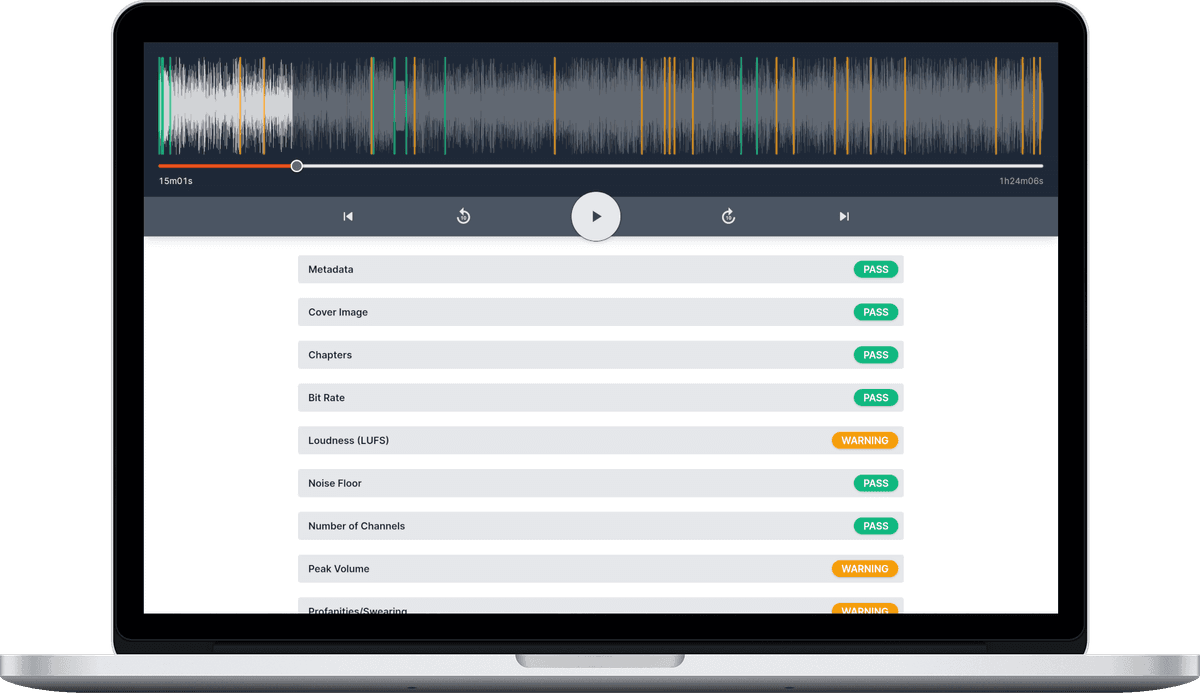
Then run the finished file through an Audio Audit report. A few checks matter more than usual when an episode contains voice notes:
- Loudness (LUFS) confirms the whole episode still lands around -16 LUFS once the notes are in.
- Quiet channel fails a stereo episode where one side is silent, which is what happens when a mono clip ends up on one side of a stereo track.
- Silences in the middle flags any gap of 3 seconds or more, which is easy to leave behind when you trim a note’s run-up.
- Unwanted noises marks coughs, sneezes and pets with a timestamp, so you can decide whether each one stays.
- Restarted sentences finds the false starts you meant to cut.
Every account gets free credits each month, so you can check an episode with its voice notes in before it goes out.
Photos courtesy of Vitaly Gariev