How to Lower Your Noise Floor: Room, Gain and Gentle Clean-Up
 Damian Moore, Last updated: 19 October 2026
Every recording has a noise floor: the constant background that sits under the voice and shows up in every pause. Fans, fridges, traffic, computer hum, the hiss of a preamp working hard. Our noise floor explainer covers what it is. This guide covers noise floor reduction: how to get it down, and how to check you have.
The target we use is -60 dB. Below that, background noise is hard to notice for most listeners on most devices. Above it, hiss starts to show, especially on headphones in a quiet room, which is where a lot of podcasts get heard.
The order matters. Room first, then microphone and gain, then software. Each step makes the next one easier, and software works best when it has the least to do.
What a -60 dB Noise Floor Sounds Like
At -60 dB, the pauses between sentences sound quiet but not dead. You might hear the room faintly if you listen for it. At -50 dB, most people notice a steady hiss or hum on headphones once the voice stops. At -40 dB, the noise is part of the recording.
The kind of noise matters as much as the number. A low rumble from traffic or a building’s ventilation is easy to miss at -60 dB. A high-frequency hiss at the same level is much easier to hear. That’s why the same reading can sound fine on one show and hissy on another.
Start With the Room
Software can’t tell your voice from the noise as well as you’d hope, so the cheapest decibels are the ones you never record.
- Switch off what you can: fans, air conditioning, heaters that tick, the fridge if it’s nearby. Close windows and doors.
- Move the computer away from the mic, or put it on the other side of something soft. Laptop fans spin up halfway through an episode.
- Record in a smaller room with soft furnishings. Curtains, a rug, a sofa and a full bookshelf do more than a few foam tiles on bare walls.
- Listen to the room on headphones for 30 seconds with your mic live and nobody speaking. Whatever you hear is going into every pause.
Hum is the exception: a steady tone at 50 Hz in the UK and Europe, 60 Hz in the US, often with harmonics above it. It usually comes from the electrics, not the room: a ground loop between devices on different sockets, a cheap USB hub, or an unbalanced cable running next to a power lead. Plugging everything into one power strip and using balanced XLR cables often clears it.
Get the Voice Louder Than the Room
The noise floor is measured relative to the loudest the file can go, so anything that makes your voice louder compared with the background lowers it in practice.
Moving closer is the most effective change. Halve the distance between your mouth and the mic and your voice gets about 6 dB louder, while the room stays where it was. A dynamic mic used close up picks up far less room than a condenser a metre away.
Then set the gain so your speech peaks comfortably, roughly -12 to -6 dBFS on your recording meter. Too little gain and you’ll have to boost the file later, which raises the noise with it. Too much and you clip. If your interface only reaches a usable level with the gain knob at its limit, that last stretch of the knob is often where the preamp hiss lives. An inline mic booster or a quieter interface is the fix, not more software.
Before every session, record ten seconds of silence with everyone in place. It gives noise reduction tools a clean sample of the room, and it tells you the noise floor before you’ve spent an hour recording into it.
Clean Up Gently in Software
Once the recording is as quiet as you can make it, a few tools take it the rest of the way.
1. High-Pass Filter
A high-pass filter removes everything below a set frequency. Set somewhere around 70 to 100 Hz on each voice track, it takes out rumble, desk thumps and some hum without touching speech.
2. Expander or Gate
An expander turns the quiet parts down further, so the noise between phrases drops while the voice is left alone. A gate does the same more abruptly. Keep it gentle: a gate that slams shut makes the background pump in and out with every word, which is more distracting than a steady hiss.
3. Noise Reduction
Noise reduction learns what your noise sounds like and subtracts it. Give it a sample of pure background, use the least strength that does the job, and run it on each voice track before music goes in. Push it too far and speech starts to sound watery or underwater, with a swirly artefact engineers call “musical noise”. For heavy repair work, dedicated tools such as iZotope RX go further, and we compare it with Audio Audit in our iZotope RX comparison.
Noise Reduction in Audio Audit
Audio Audit’s enhancements include noise reduction built on the same principle. It builds a noise profile from your file’s own quietest moments, then applies a gentle smoothing pass and spectral reduction that subtracts that profile while leaving speech intact. Where there’s room tone between phrases, a soft speech gate lowers the gaps rather than muting them, so pauses still sound natural.
Reduction is capped at 12 dB, below the point where musical noise appears. You can leave it on Auto, which is guided by your measured room tone, or choose Light, Medium or Strong. If the recording is already gated, as voice-activated recorders do, it detects that and skips the steps that need natural room tone.
The cap is also a useful guide to how much any tool can do cleanly. If your noise floor is -48 dB, 12 dB of reduction gets you to about -60 dB. If it’s -40 dB, software alone won’t get there without damaging the voice, and the room or the mic is the better place to fix it.
Measure Again Afterwards
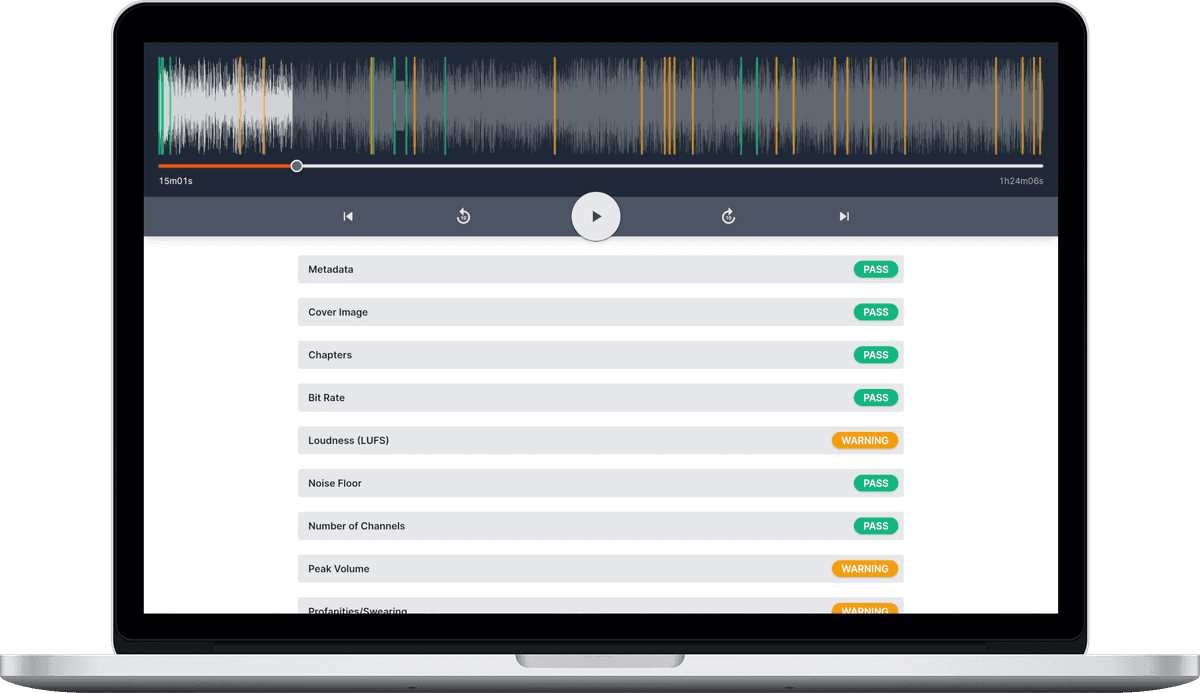
Clean-up is easy to overdo by ear, and easy to underdo after an hour of listening. Check the exported file. Audio Audit’s Noise Floor check measures it and flags anything above -60 dB. It’s Informational in the built-in standards, so it won’t fail a report on its own, but you can make it Required or change the limit in a custom standard.
Short one-off sounds such as coughs, knocks and barking dogs aren’t part of the noise floor. They’re picked up by the separate unwanted noises check, with each one marked on the report’s waveform.
To see where your own noise floor sits, upload an episode to Audio Audit. Every account gets free credits each month.
Photos courtesy of Vlad Patana