Silences in the Middle
 Damian Moore, Last updated: 19 October 2026
Sometimes there can be long silences that get left in an episode when editing. This check finds periods of audio below -60dB that are longer than 3 seconds.
A pause is a natural part of conversation, but a long stretch of nothing in the middle of an episode is a different thing. After a few seconds of silence most listeners don’t think “dramatic pause” — they think playback has stalled, their headphones have dropped the connection or the app has crashed. They reach for their phone, and once they’re there it’s only a tap to skip ahead or move on to something else.
What the check looks for
The Silences in the middle check flags any silence inside the body of the episode that lasts the set length or longer. The default is 3 seconds, which is also the shortest limit you can set. For this check we count anything below -60 dB as silence, so it’s looking for near-total gaps rather than quiet moments in the conversation.
Each silence it finds is listed with its own timestamp, so a report can show several of them.
Common causes
Long gaps almost always come from production rather than from the conversation itself:
- An edit that removed audio but left the gap. A section was cut, but the clips either side were never pulled together.
- Remote-recording dropouts. A call connection broke up, or one side’s recording stopped for a moment.
- A guest who was muted while still talking, or was meant to come back in and didn’t.
- A missing ad insert or sting. Space was left for an advert, jingle or clip that never made it into the final mix.
- An export with a gap between clips on the timeline, which is easy to miss when you’re zoomed out.
Finding them on the report
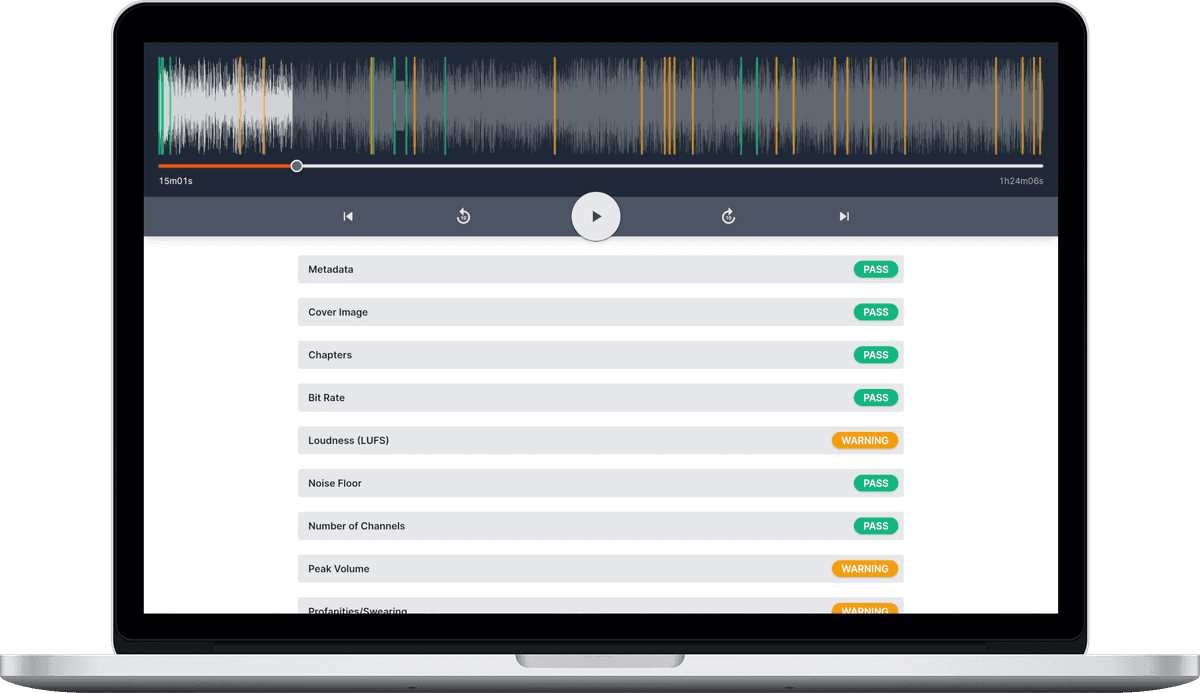
Each long silence appears as an amber marker on the report’s player, and as a divider between phrases in the transcript, so you can see what was said either side of the gap. Every finding has a timestamp you can click to jump straight to it and listen.
Fixing them in your editor
Open the episode in your DAW or editor, go to each timestamp and decide what the gap should be:
- Close the gap. If audio was cut and the remaining clips weren’t pushed together, ripple-delete the empty space so the conversation flows on.
- Add room tone. If the pause is meant to be there, fill it with a little of the recording’s natural background sound rather than leaving digital silence, so it doesn’t sound like the stream has dropped.
- Check whether content is missing. A gap where an ad, sting or clip should be is a sign that something didn’t make the final mix, or that a guest’s audio was lost. Put it back before you publish.
Then export again and run a new report to confirm the gaps are gone.
How it’s scored
In every built-in standard this check is Informational — long silences show up on the report and count towards the percentage, but they won’t fail it on their own. If your show needs something different, a custom standard lets you raise the length (to allow longer pauses before they’re flagged) or make the check Required, so any long silence fails the report.
How it differs from the start and end checks
Audio Audit has two other silence checks, and they measure something different. Silence at Beginning and Silence at End look at how much silence sits right at the edges of the file, where a little is a good thing, and they treat anything below -40 dB as silence. Silences in the middle only looks at the body of the episode, where any long gap is worth a look, and it uses the lower -60 dB threshold. A silence that runs from the very first moment of the file or right up to its end is left to those other two checks.
You can read the story of how this check came about in our news post. Long silences also show up as dividers in the transcript alongside your speaker names, which makes it easy to see who was talking either side of a gap.
Photos courtesy of Felix Oertle