Podcast Transcripts With Speaker Names, Follow-Along Playback and More
 Damian Moore, Published: 15 October 2026
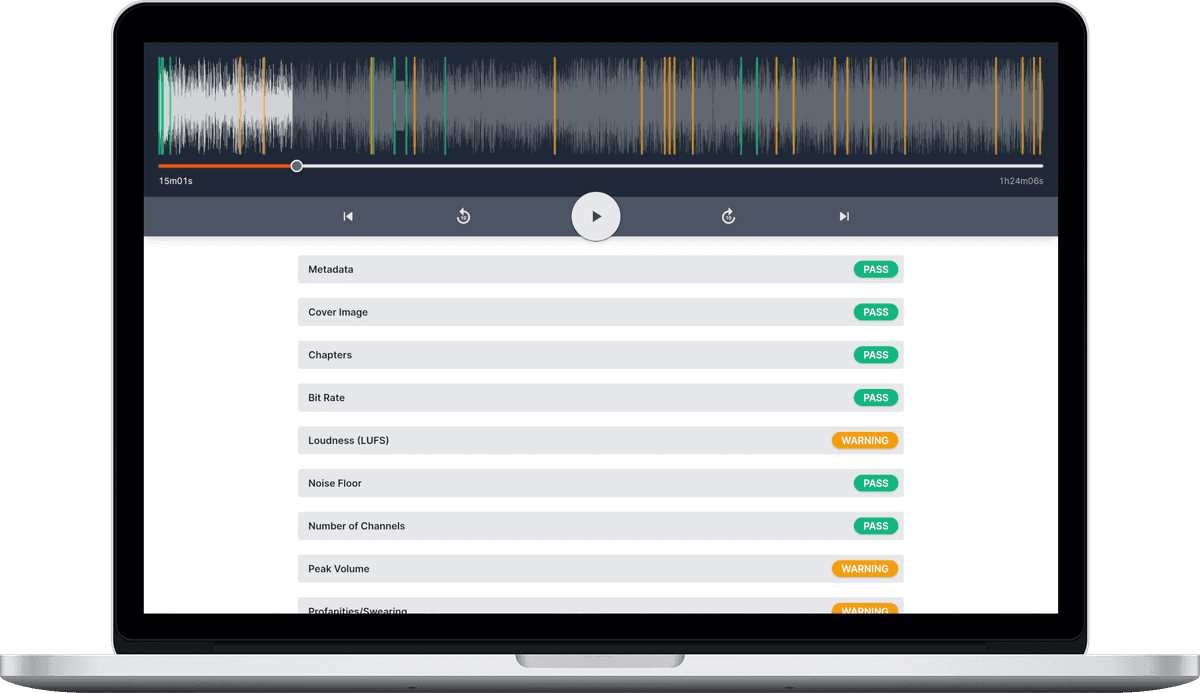
Every Audio Audit report comes with a full transcript of your episode. Until now it sat at the bottom of the report as a long block of text. That’s fine for copying into show notes, but it’s no help when you want to see who said what, follow along while you proof-listen, or find the sentence behind a flagged noise.
So we’ve rebuilt the transcript into something you can actually work in. Over the last month we’ve also moved to a new, more accurate transcription engine that tells your speakers apart (aka Speaker diarisation/diarization). The transcript viewer is now live on every report, for every plan.
Every Speaker in Their Own Colour
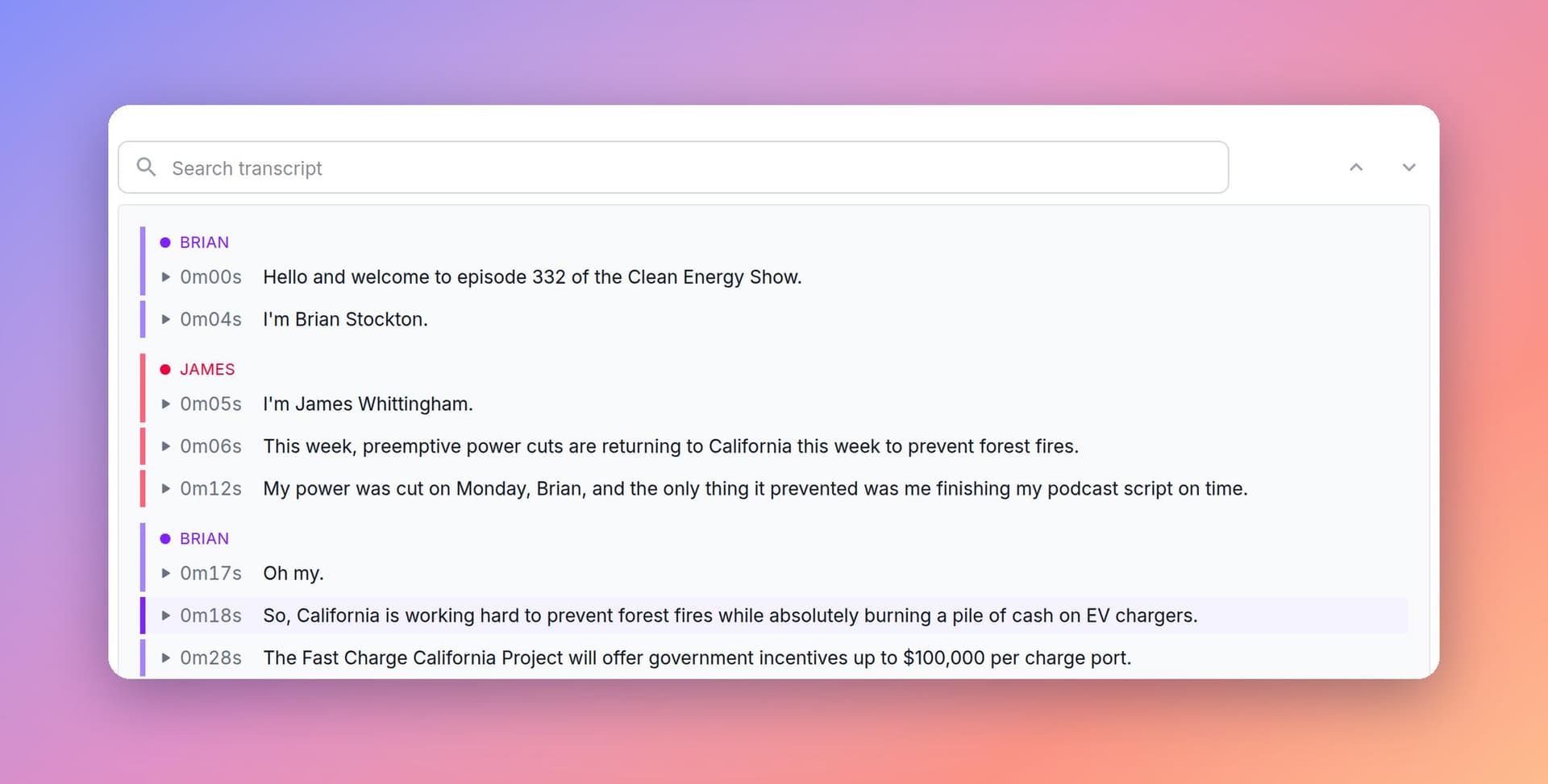
When Audio Audit detects more than one voice, it labels each change of speaker and gives every speaker their own colour, shown beside their label and along the edge of their phrases. In an interview or a panel show you can see at a glance where one person stops and the next begins. Solo episodes stay plain, with no labels or colours to get in the way.
Give Your Speakers Real Names
Speaker detection works from voices alone, so it numbers people in the order they first speak: Speaker 1, Speaker 2 and so on. Now you can change that. Click a speaker’s label, type their name and press Enter.
- It’s used everywhere. The name replaces the label throughout the transcript, in copied quotes and text, and in the downloads.
- Everyone sees it. Anyone who can view the report sees the name, so your editor and your producer work from the same transcript.
- It’s reversible. Clear the name to go back to the original label. The underlying transcript never changes.
Renaming needs permission to run reports for that show, so a teammate with view-only access can read the names but not change them.
In the downloads, plain-text and SRT files start each line with the speaker’s name, and WebVTT files use standard voice tags that video players understand.
It Follows Along While You Listen
Press play and the current phrase is highlighted, with the transcript scrolling to keep it in view. If you scroll away to read something else, it stops following and leaves you where you are. Click Jump to current to pick it back up.
- Play from anywhere. Click a timestamp or the phrase itself and the episode plays from that point.
- Copy a quote. Hover over a phrase to copy it with its timestamp and speaker, ready for show notes or a social post.
This makes proof-listening much easier. You can read along as you listen and catch the misheard word or the line that needs an edit, without losing your place.
Findings Shown in Context
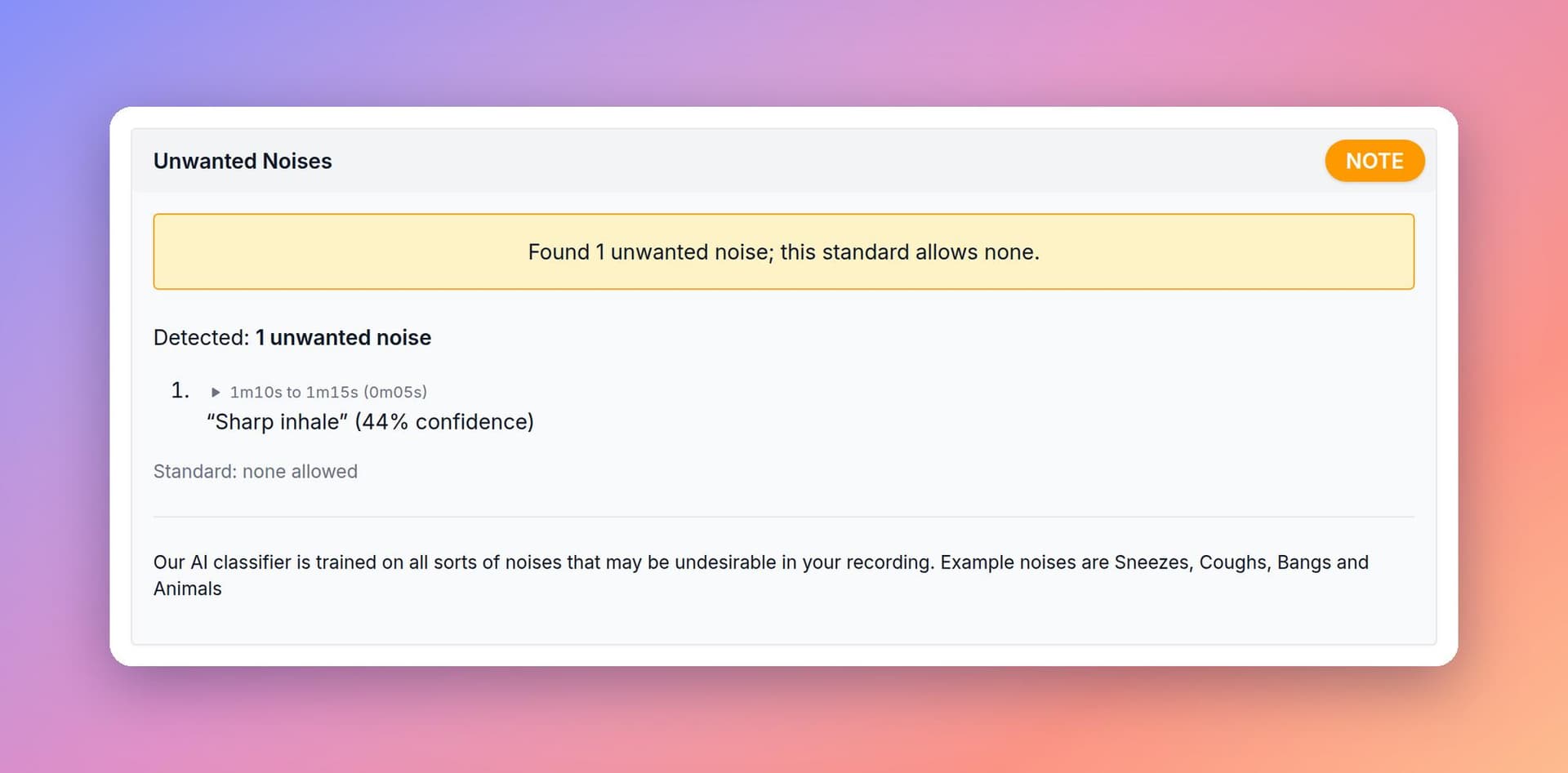
The transcript now connects to the rest of your report. When a check finds something in a stretch of speech, such as an unwanted noise or a swear word, that phrase is tagged, and flagged words are underlined in place. Chapters and long silences appear as dividers between phrases.
Click a tag to open and highlight the finding in its check. Play a finding from its check and the transcript scrolls to the matching words. You get the finding and the sentence it came from in one place.
Find Any Moment
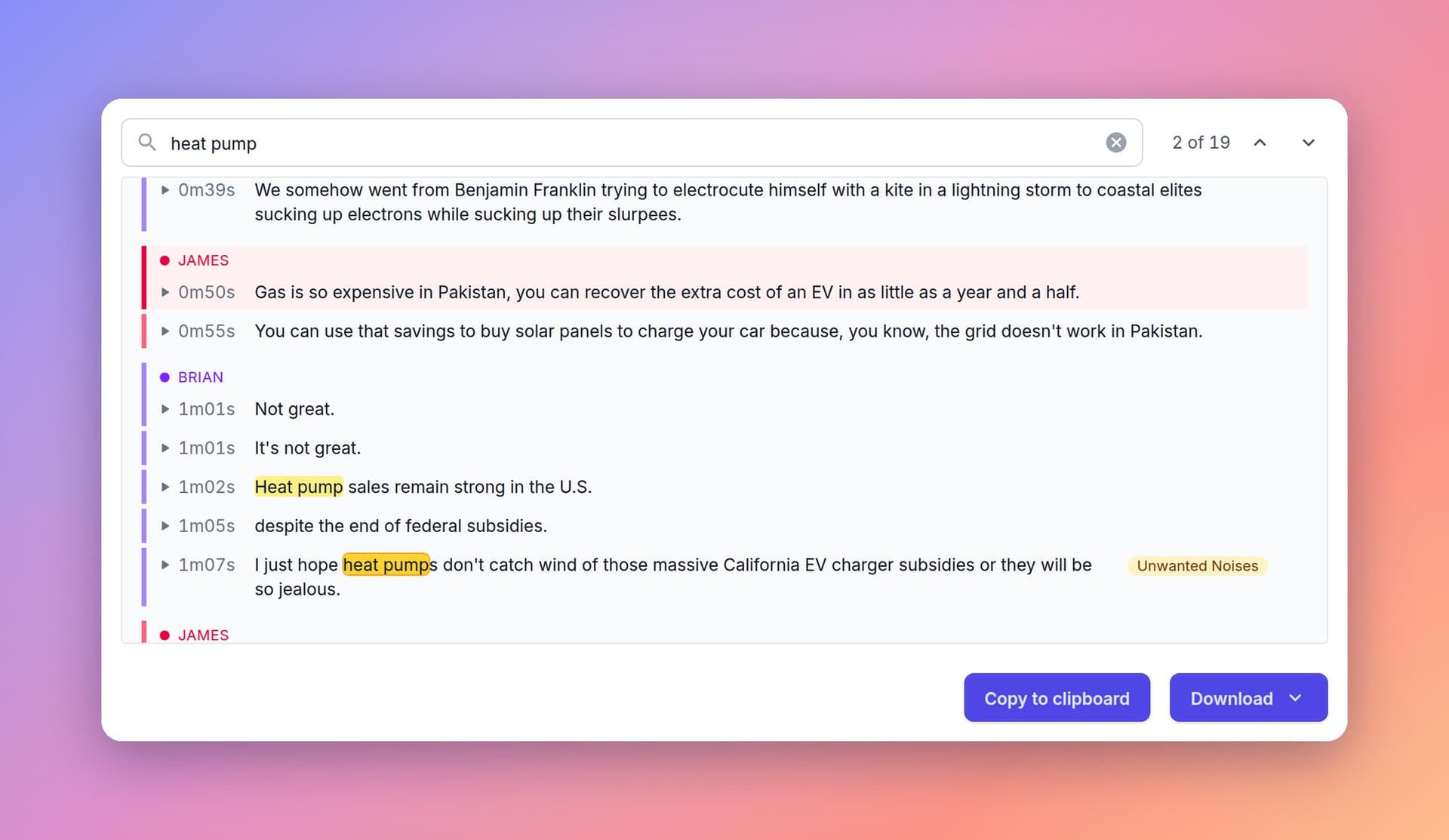
Type a word or phrase into Search transcript and every match is highlighted, with a count like “2 of 19”. Step through them with the arrows, or press Enter and Shift+Enter, and press Escape to clear the search. It’s the quickest way to find where a guest mentioned a sponsor or a topic.
Better Transcripts Underneath
The viewer is only as good as the words in it, and the transcript itself has improved a lot.
- More accurate words. On a widely used public benchmark, our new transcription engine makes roughly 40% fewer word errors than the models we used before. (That’s a third-party figure on English speech; your results will vary with your recording.) Names, numbers and jargon need less proofreading.
- Times read naturally. “One fifteen a.m.” comes out as “1:15 a.m.”, not “115”.
- More word-for-word. When a host restarts a sentence or says “um, you know”, the transcript keeps it, which is what your editor needs to see. If you publish transcripts, give them a quick tidy first.
- Faster, especially on long episodes. Transcription used to slow down as episodes got longer. It’s now quicker than before even with speaker detection included, and the difference is biggest on long-form shows.
- Short turns land on the right person. Quick interjections between two similar voices used to inherit the surrounding speaker’s label. We now re-check each phrase against its own audio.
Language support hasn’t changed: transcription still detects the language automatically.
Sharper Checks Built on the Transcript
Several parts of every report read the transcript, so they improve with it.
- Restarted Sentences catches far more unfinished edits, with fewer false alarms. It flags a run of five or more words said again within 20 seconds, so a natural two-word repeat is no longer treated as a mistake.
- Profanities/Swearing benefits directly from better word accuracy: fewer misheard words means fewer false alarms and fewer misses.
- Automatic chapters are proposed from your transcript, so they’re now built from a more accurate version of what was said.
Speaker Detection Has Limits
Speaker detection works from voices alone, so a few things are worth knowing:
- Very similar voices can occasionally be merged into one speaker, or one voice split into two.
- Very short replies said over another person can still be hard to place.
- Crosstalk is transcribed as one stream when people talk over each other.
- If speaker detection can’t run on an episode, you still get the full transcript, just without labels.
For interviews, co-hosted shows and panels, even imperfect labels make a transcript far quicker to work with, and a quick skim before you publish catches the rest.
What It Costs
Nothing extra. Transcription is priced exactly as before, as part of your report’s credits, and speaker labels, speaker names and the viewer come included. There’s nothing to switch on.
Where to Find It
- Open any report and scroll to Transcript.
- To name a speaker, click their label, type the name and press Enter (Escape cancels).
- Press play to read along, or use Search transcript to find a word.
- Use Copy to clipboard or Download for WebVTT, SRT or plain text, with your speaker names included.
New reports get the new transcript with speaker labels automatically. Older reports keep the transcript they were made with, so they won’t show speaker labels, though the viewer works on them too. To get the new transcript for an older episode, run a new report on it; it’s charged like any other report.
Frequently Asked Questions
Do I need to do anything to get the new transcripts?
No. Every new report uses them automatically.
Will my API integration break?
No. Each transcript line now includes a speaker field. It’s an addition, so existing fields and endpoints are unchanged. See REST and GraphQL API docs.
Why does my transcript now include “um” and repeated words?
The new engine is more faithful to what was actually said, including restarts and filler words. That’s what makes the Restarted Sentences check work, and it’s useful when you’re editing.
What’s Next
We’ll keep improving speaker detection on crosstalk and very short replies, and we’d love to hear how speaker names and search work on your longer episodes. If something in a transcript looks wrong, tell us from the report page. Real episodes are the best test we have.
For more on what’s in every report, see Understanding Reports. For how credits work, see the Billing & Plans guide, and for how your audio is processed and stored, read our Privacy Policy.
Photos courtesy of Austin Distel