Introducing Automatic Chapters: Podcast Chapter Markers in Seconds
 Damian Moore, Published: 13 October 2026
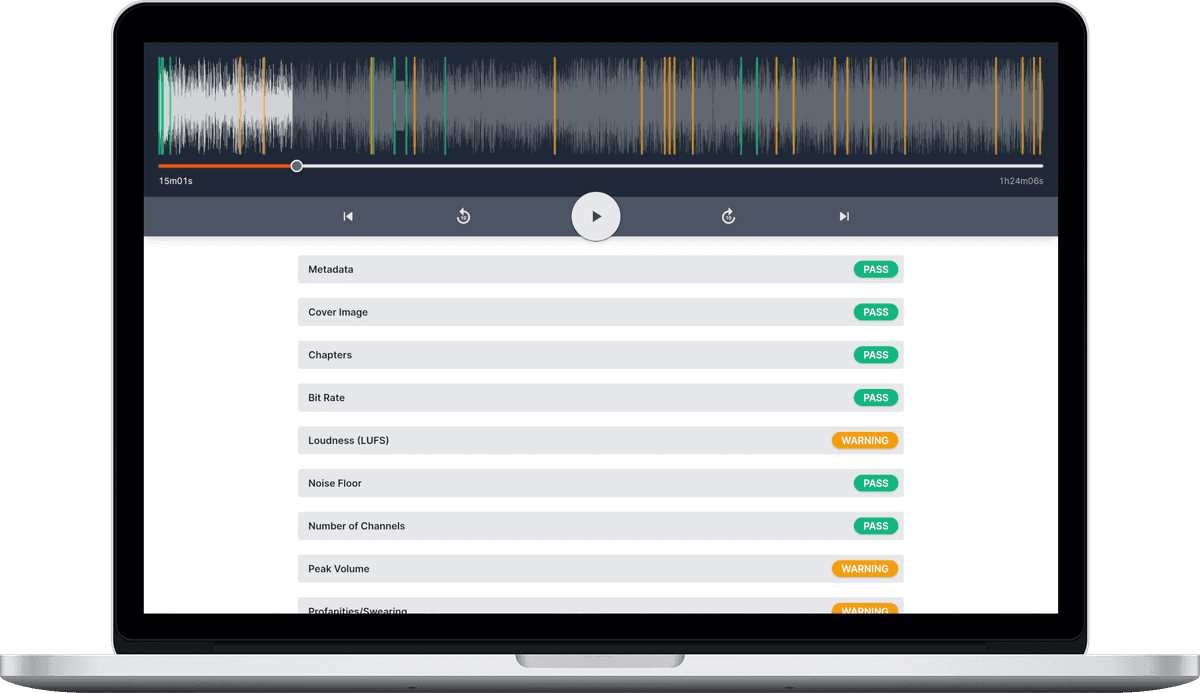
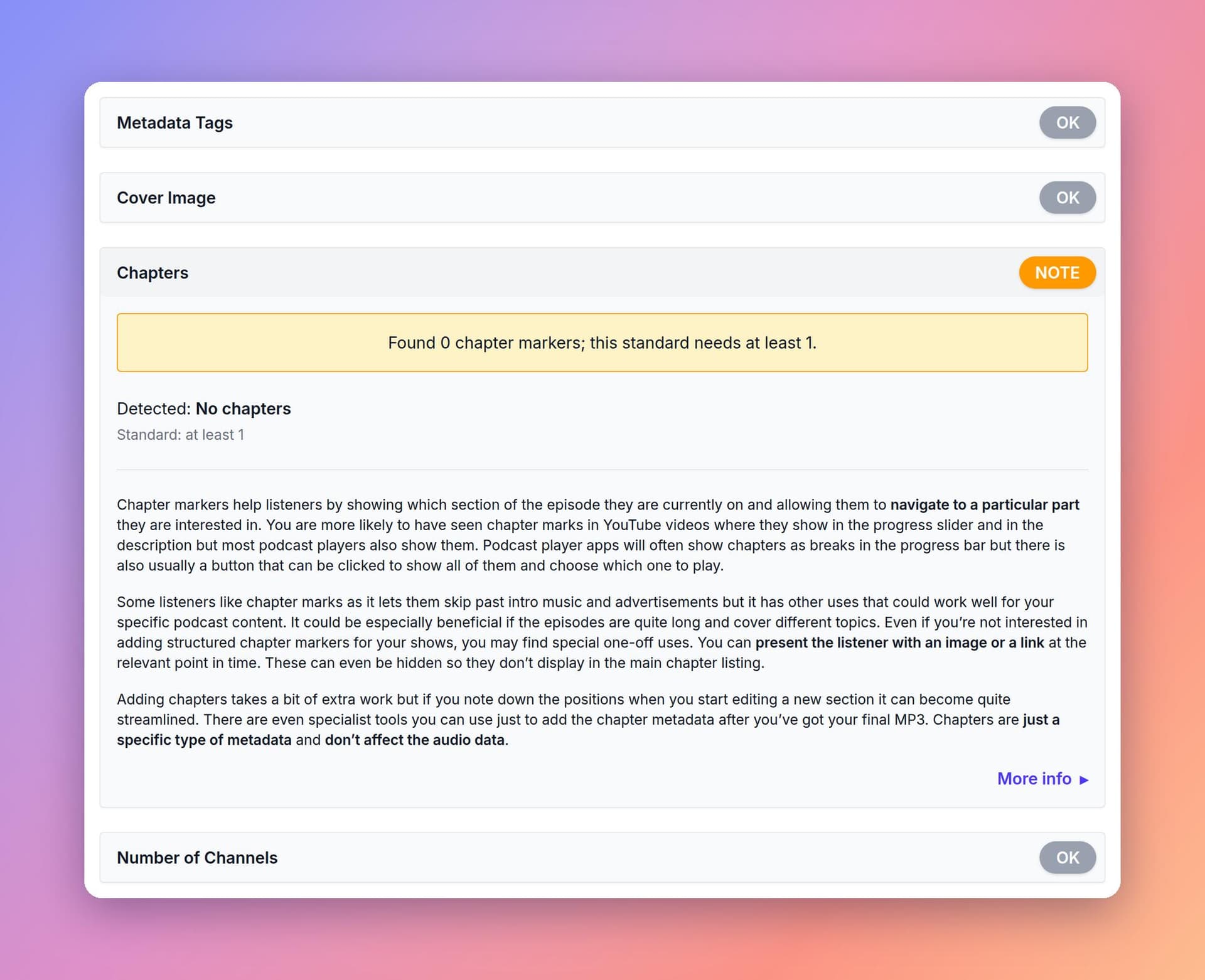
Chapter markers are one of those things every podcaster knows they should add and almost nobody does. They make an episode easier to navigate, they help listeners find the part they came for, and they make a show look properly produced. They also mean scrubbing back through your own edit, noting timestamps and typing titles, every single week. So plenty of shows skip them, and the Chapters check in every Audio Audit report is there to flag it.
Now Audio Audit can fill it for you. Automatic chapters are live for all users. From any finished report, or straight from the dashboard, Audio Audit reads your episode’s transcript and proposes a set of chapter titles and start times. You review and edit them, and they’re written into the enhanced file. Here’s how it works.
Why Podcast Chapters Are Worth the Effort
If you’ve never added chapters, here’s what they do for your listeners and for you:
- Navigation. Players that support chapters show them as markers on the progress bar and as a list listeners can jump through. A 50-minute interview becomes something people can dip into.
- Skipping. Listeners can jump past the intro, the sponsor read or the segment they’ve already heard. That’s a better experience than hammering the 30-second skip button.
- Show notes that write themselves. A clean list of timestamps and titles is ready-made show notes. It’s also a table of contents for search engines and for anyone deciding whether to press play.
- Reuse. Chapter titles mark your best segments, which makes it easier to pick clips for social media, newsletters and YouTube.
- A more professional show. Chapters are a small detail that signals care. They’re one of the checks in every Audio Audit report for exactly that reason.
If you want the background, our guide to podcast chapters explains how chapter markers work and where they show up.
What Automatic Chapters Does
Automatic chapters turns a transcript into a first draft of your chapter list:
- It reads the transcript. Every Audio Audit report already transcribes your episode. Automatic chapters uses AI to read that transcript and spot where the conversation moves on to a new topic.
- It proposes titles and start times. You get a list of short, descriptive titles, each with a start time that lines up with where that topic begins in the audio.
- You stay in charge. The proposals drop into an editor where you can rename, retime, delete or add rows. Nothing is written into your audio until you choose to.
- Your file gets the chapters. When you run the enhancement, the chapters are embedded in the finished file alongside its tags and cover art. You can also download them as files for your podcast host or RSS feed.
To be clear about where AI is involved: it drafts the chapter titles and timings from your transcript, and nothing else. The audio processing in Enhancements is still deterministic, measured processing. Nothing about your sound is generated or altered by AI.
Two Ways to Add Chapters
You can use automatic chapters in two ways, depending on where you start.
1. From a Report: “Generate Automatically”
This is the quickest route, because the report has already transcribed the episode.
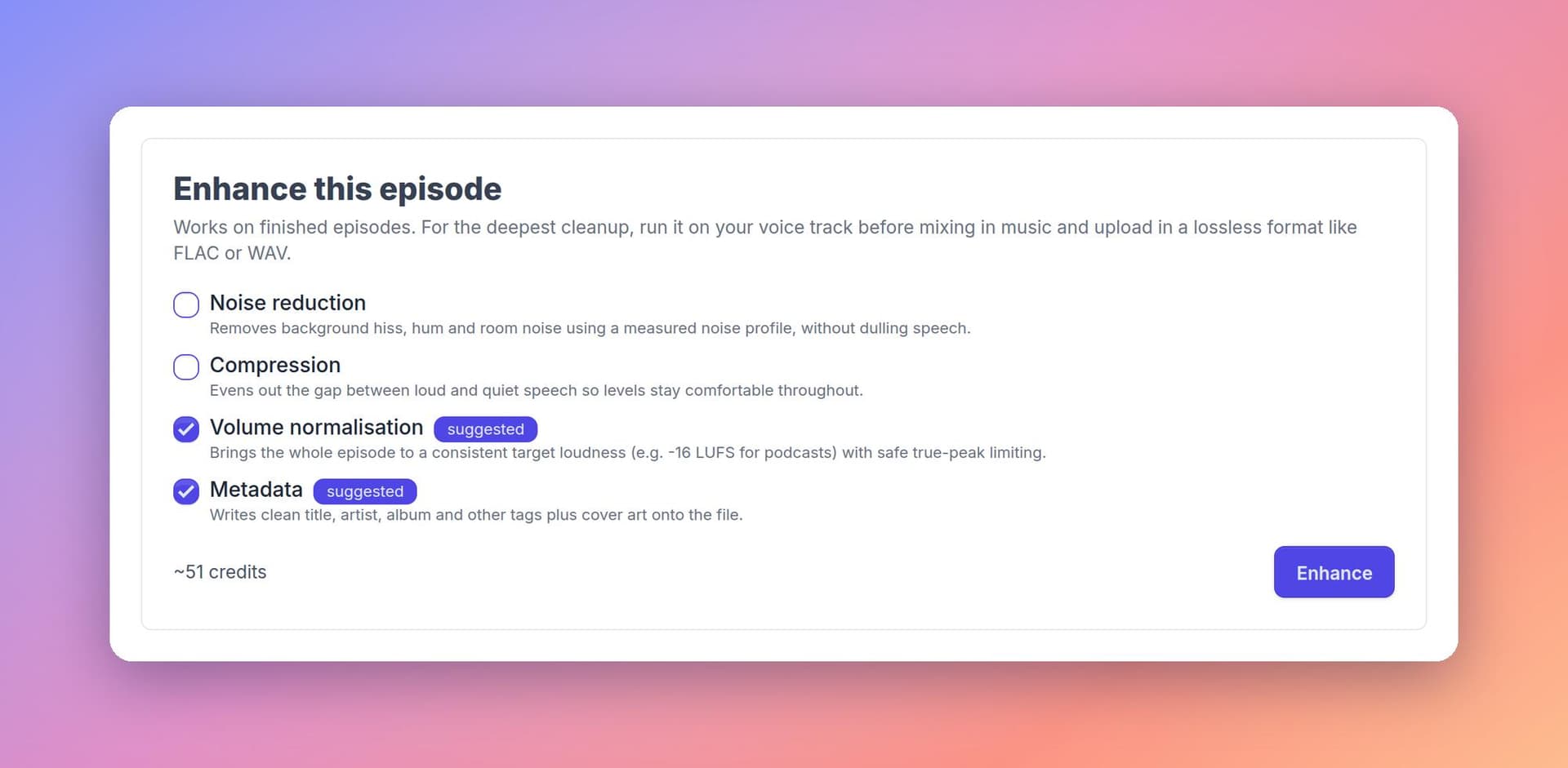
On a completed report, the Enhance this episode panel pre-ticks the enhancements that would fix what the report found. A missing-chapters note suggests Metadata, because chapters live alongside your tags. Click Enhance and scroll to the Chapters block in the options.
Click Generate automatically. The button shows the price before you commit. A few seconds later the editor fills with proposed chapters. The screenshot below shows the result for a ten-minute episode of a gardening show: twelve chapters, from the introduction through garlic planting, leaf mould and a listener’s question about split tomatoes to frost protection for the dahlias.
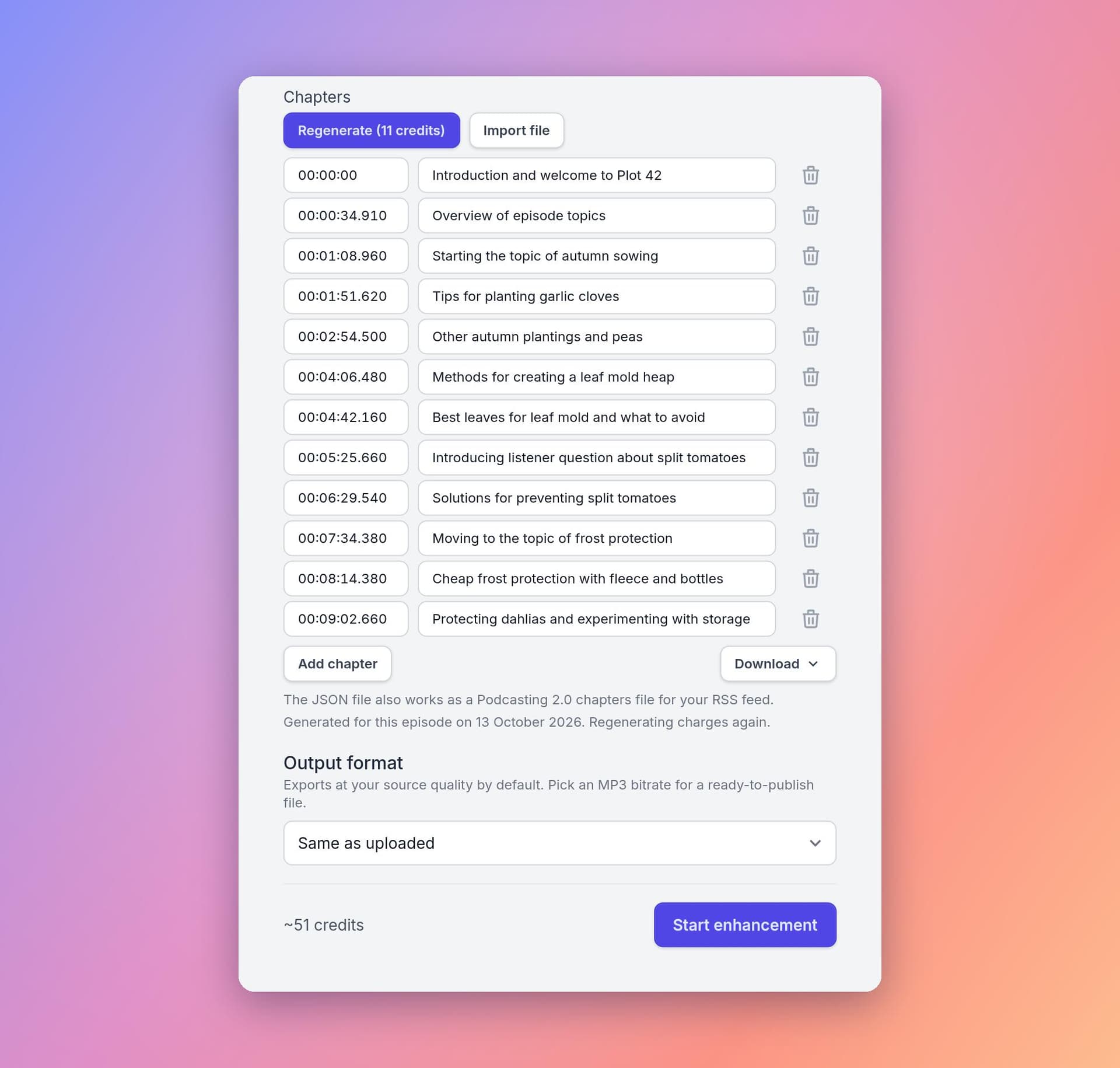
Edit anything you like, then click Start enhancement. If you come back to the same report later, the chapters you generated are still there. The button then reads Regenerate, because generating again is a fresh charge.
2. From the Dashboard: “Automatic Chapters” With a Review Step
Want to add chapters to your lossless master before you publish? Drop the file on the Enhance Audio card on your dashboard. MP3, M4A, WAV and FLAC all work. Tick Metadata, then tick Automatic chapters in the options.
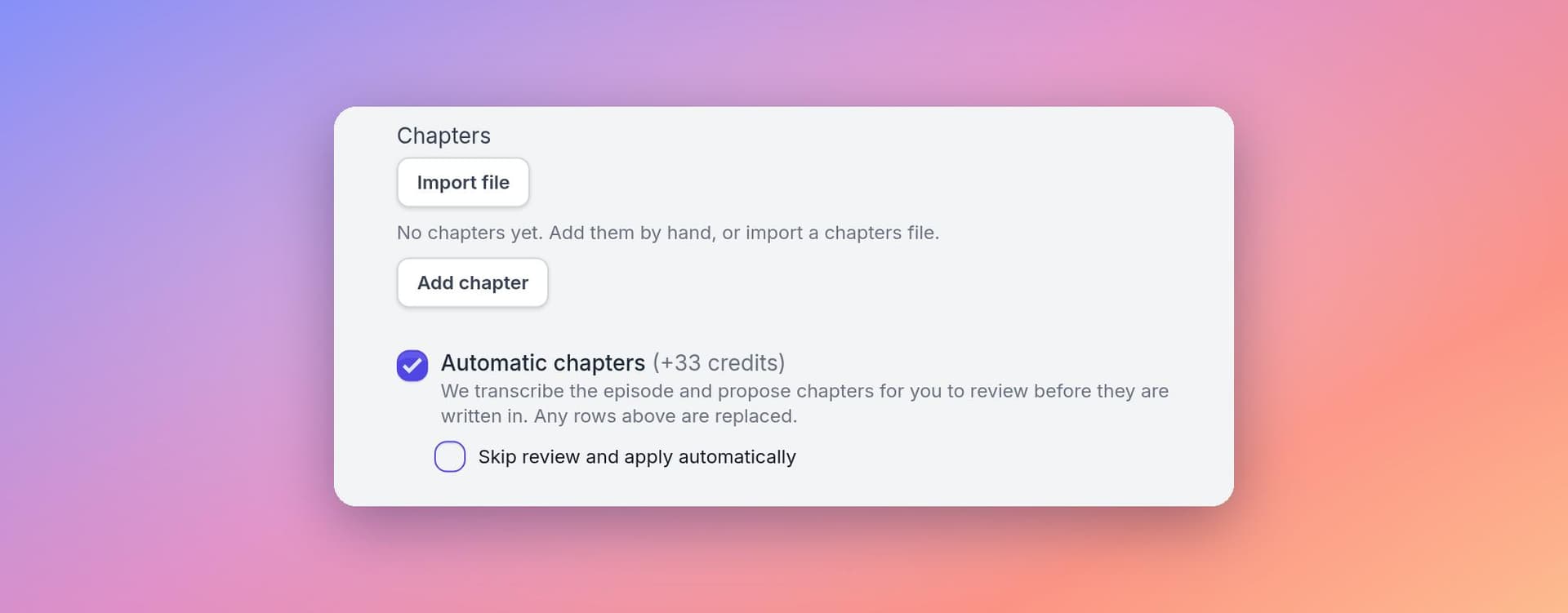
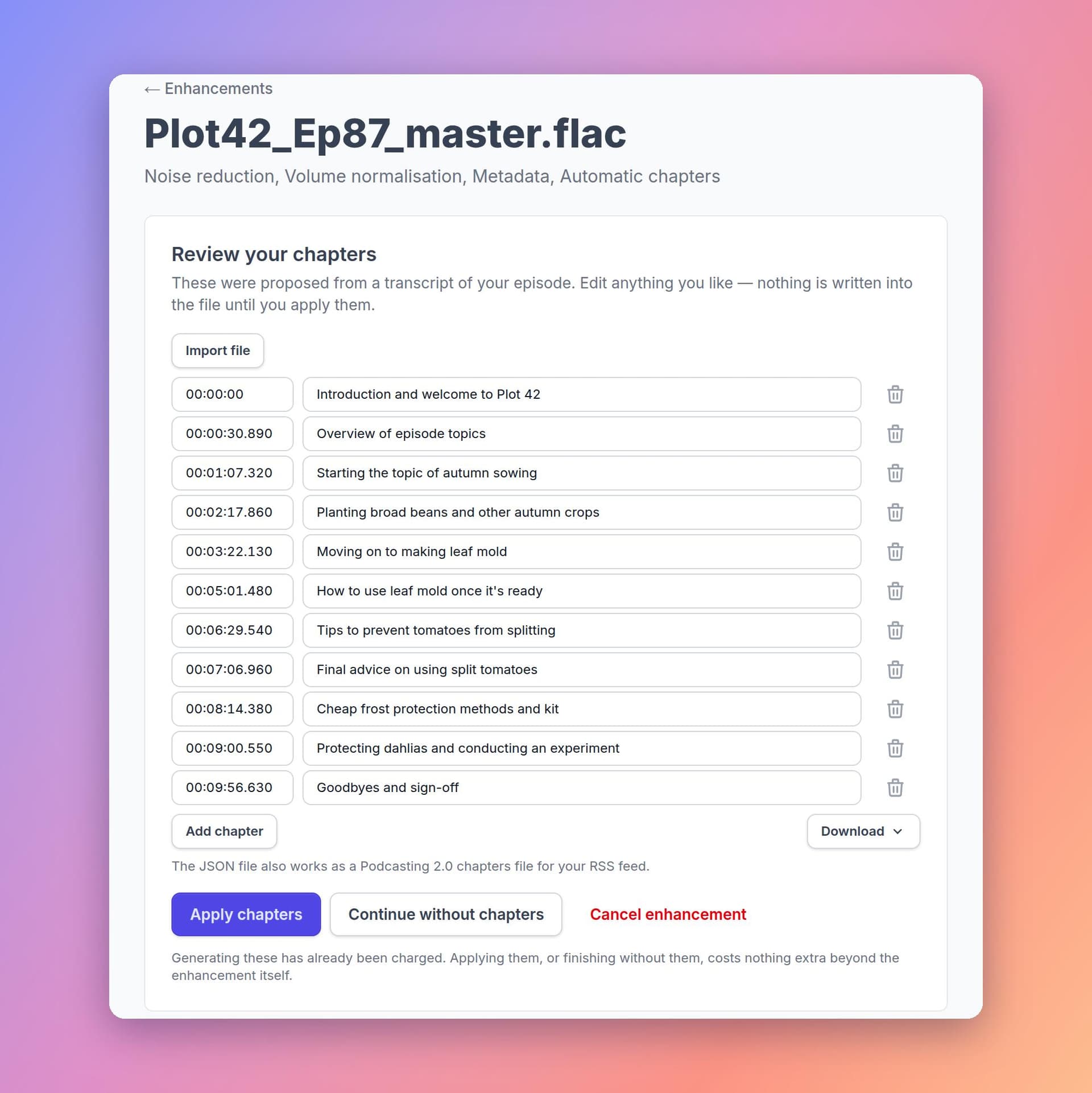
An uploaded file has no transcript yet, so Audio Audit transcribes it first. The job then pauses at a Review your chapters step on the enhancement’s page. From there you can:
- Apply chapters — write your (edited) list into the file and finish the job
- Continue without chapters — finish the enhancement without them
- Cancel enhancement — stop the job altogether
In this review, the proposal used the American spelling “leaf mold”, so we’d fix that before applying. That’s the point of a review step.
If you’d rather it just ran through, tick Skip review and apply automatically. That suits producers who batch-process a backlog and tidy up later.
Edit, Import and Export Your Chapters
The chapters editor works whether or not you use automatic chapters:
- Existing chapters are loaded in. If your file already has chapters embedded, they appear in the editor ready to edit.
- Times are forgiving. Type start times as
hh:mm:ss(ormm:ss). Rows re-sort themselves, and problems are flagged next to the row: a duplicate start, a time past the end of the audio, or a missing title. - Import and download. Bring in a chapters file from an earlier run, or download your list in either of two standard formats.
| Format | What it is | Where to use it |
|---|---|---|
| Embedded chapters | Written into the enhanced audio file itself | Any podcast app that reads chapters from the file |
chapters.json | A Podcasting 2.0 JSON chapters file | Host it and link it from your RSS feed for apps that support the Podcasting 2.0 namespace |
chapters.txt | Plain HH:MM:SS.mmm Title lines, as used by tools like mp4chaps and Podlove | Paste into show notes, import into other editing tools, or keep as a record |
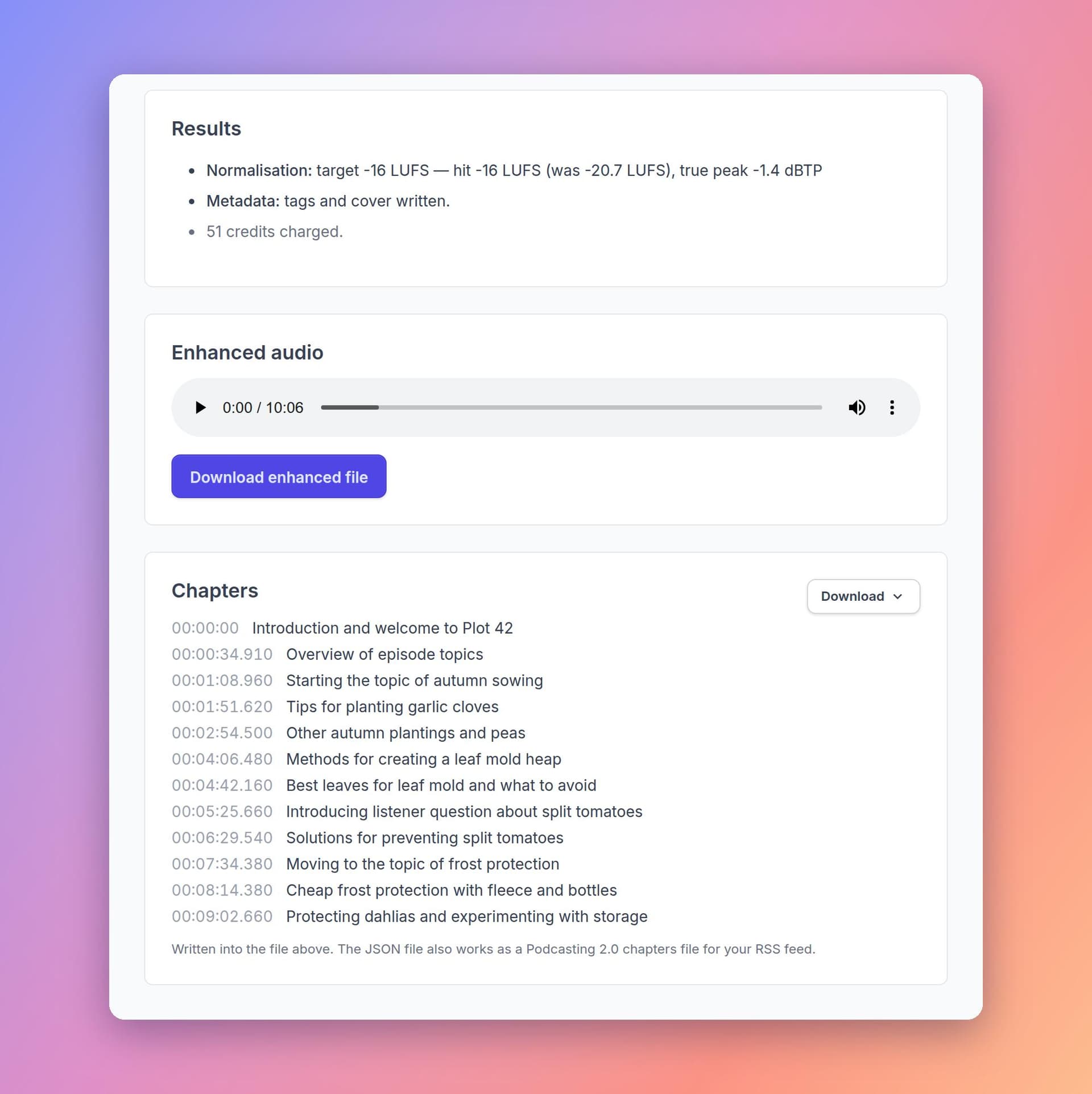
When the enhancement finishes, its page shows the chapters that were written into the file. The same two downloads sit next to the enhanced audio.
💡 Tip: Some platforms, including YouTube and Spotify, can build chapters from timestamps in your episode description. The chapters.txt lines make a good starting point for that list.
What It Costs
Automatic chapters use the same credits as everything else. The price is always shown on the button before you click.
| Where you start | What you pay for | Example: a 60-minute episode |
|---|---|---|
| From a report | Chapter generation only. The report’s transcript is reused, and you already paid for it with the report. | About 60 credits |
| From the dashboard | Chapter generation plus the transcription it needs first | About 186 credits |
| Typing, importing or downloading chapters | Nothing | Free |
A few rules worth knowing:
- Priced per audio-minute, with the same 10-minute minimum as every other job.
- Charged when the proposals arrive. You pay for the proposals even if you then decide not to write them into the file. If they never arrive, nothing is charged.
- The enhancement is charged separately. If you’re also normalising loudness or reducing noise, those are part of the enhancement job, and the estimate shows the total.
For scale: 600 credits is about an hour of standard analysis, so chapters for an hour-long episode from a report cost roughly a tenth of that.
Tips for Better Chapters
Automatic chapters gives you a strong first draft. A minute of editing turns it into a great one:
- Keep titles short and specific. “Listener question: split tomatoes” beats “Q&A section” when someone is scanning a list on a phone.
- Aim for sensible spacing. For most spoken-word shows, a chapter every few minutes works well. Merge very short chapters and split very long ones.
- Mark the moments listeners look for: guest introductions, recurring segments, listener questions and anything they might want to jump back to.
- Match your house style. Fix spellings, capitalisation and any in-jokes so the titles sound like your show.
- Keep your ad breaks honest. If you label sponsor segments, listeners will trust your other chapters more.
Frequently Asked Questions
Do I need to run a report first?
No. Starting from a report is the quickest and cheapest route because the transcript already exists. You can also upload a file directly on the dashboard’s Enhance Audio card and tick Automatic chapters.
Will it overwrite chapters that are already in my file?
Only if you ask it to. Chapters already embedded in your file are loaded into the editor. Generating replaces the rows in the editor with the new proposals, and nothing reaches the file until you start the enhancement or apply the chapters at the review step.
Can I regenerate if I don’t like the result?
Yes. Click Regenerate for a fresh set of proposals. Each run is charged, so it’s usually quicker to edit the titles you have.
Is my audio changed?
Chapters and tags are metadata, so they don’t touch the sound itself. If Metadata is the only enhancement you choose and you keep the original format, your audio isn’t re-encoded at all. Only the tags and chapters change.
Does it work for team workspaces?
Yes. In an organisation, automatic chapters follow the same roles and permissions as other enhancements. Owners and Admins can use them, and other members need the Enhance audio permission.
Try It on Your Next Episode
Open your latest report, or drop an episode onto the dashboard, and let Audio Audit draft your chapters. We’d love to hear how the proposals compare with the chapters you’d have written yourself. Your feedback will shape how we tune them.
For every option in detail, see the Enhancing Audio guide. To see what chapters would cost for your episode lengths, try the calculator on the Pricing page. New to chapter markers? Start with our guide to podcast chapters.
Photos courtesy of Matt Botsford