Introducing the Audiobook Standard: Check Chapters Against ACX Requirements
 Damian Moore, Published: 10 November 2026
Audio Audit started as a podcast checker, but for a while now some of our uploads haven’t been podcasts. A few workspaces send us audiobook chapters, dozens of files at a time, just before they go off to a distributor. They were getting a podcast report back, which measured loudness in LUFS and peaks at −1 dBFS, while ACX measures RMS, wants peaks at −3 dB and turns away files in the wrong format. A chapter could pass our report and still come back from ACX’s QA team.
Custom standards let you get part of the way: you could turn on RMS loudness and tighten a few limits. Three of ACX’s rules still had no check behind them. So we’ve built them, and put them together in a new built-in standard called Audiobook. It’s available in every workspace, on every plan, Free included. And the ACX audiobook preset in our enhancements now turns out chapters that pass it.
Built on ACX’s Numbers
ACX, the production platform behind Audible, publishes the strictest technical spec of the major audiobook platforms. Its audio submission requirements say each file has to have:
- RMS loudness between −23 and −18 dB
- peaks no higher than −3 dB
- a noise floor no higher than −60 dB RMS
- a constant-bit-rate (CBR) MP3 at 192 kbps or higher, at 44.1 kHz
- a running time of at most 120 minutes
- 1 to 5 seconds of room tone at the head and tail, with no gap longer than 5 seconds
The Audiobook standard uses ACX’s limits throughout. A chapter that meets them also meets the looser specs elsewhere: Spotify for Authors, for example, accepts RMS anywhere from −24 to −14 dB.
What It Checks, and How That Differs From a Podcast
These are the Audiobook standard’s Required checks, the ones that decide whether a chapter passes, next to the Podcast built-in:
| Check | Audiobook | Podcast |
|---|---|---|
| Loudness | RMS −23 to −18 dB | LUFS −17 to −15 (RMS off) |
| Peak | True peak at most −3 dBTP | True peak at most −1 dBTP |
| Noise floor | At most −60 dB, Required | At most −60 dB, Informational |
| Bit rate | 192 to 320 kbps | 128 to 256 kbps |
| Sample rate | 44.1 kHz only | 44.1 or 48 kHz |
| Constant bit rate | Required | Off |
| Length | At most 120 minutes | Off |
| Quiet channel | Required | Required |
| Silence at start, end and in pauses | At most 5 seconds, Required | Informational |
The loudness rows look like different numbers for the same thing, but they’re different measurements. LUFS weights the signal the way the ear hears it and ignores the quiet gaps. RMS is a plain average of the signal, which is what ACX asks for. Our RMS loudness article goes into the difference.
Three of those checks are new to Audio Audit, built for this standard. Two more existed before but now work the way ACX’s rules need: the noise floor and the silence checks.
True Peak
A sample-peak meter reads the highest sample in the file. The real waveform can go higher between samples, and MP3 encoding pushes it further: on our test files, true peak came out as much as 1.5 dB above sample peak after a 192 kbps encode. A WAV that peaks at exactly −3 dBFS can be over the line once it’s the MP3 you submit.
The Audiobook standard checks true peak at −3 dBTP. ACX Check, the Audacity plugin many narrators use, reads sample peak, so ours is the stricter of the two: a chapter that passes ours passes that. Our podcast standards now judge true peak too, at −1 dBTP. Our article on true peak vs sample peak explains the gap.
Constant Bit Rate
ACX takes constant-bit-rate MP3s only. Variable bit rate is an easy option to leave on in an export dialog, and the file sounds identical either way, so it often goes unnoticed until the rejection email. The new check reads the MP3’s frames and fails the file if their sizes vary. A WAV master counts as constant, though it will fail the bit rate check until it’s encoded to MP3. AAC, FLAC and other formats fail, because ACX accepts MP3 and nothing else.
Length
ACX and Spotify for Authors both stop at 120 minutes per file. The Length check fails anything longer, so you know to split the chapter into parts before you upload it. It reads the running time we already measure for every file, so it costs no extra credits.
A Noise Floor Measured the Way ACX Measures It
The noise floor check isn’t new, but how it’s measured has changed. We used to take the quietest tenth of a second in the file. ACX Check takes the quietest half-second, which reads a little louder, so a file could pass with us and be flagged by it. Every report now measures it over half a second, whichever standard it uses. It’s Required in Audiobook and still Informational in the podcast built-ins, so no podcast verdict changes. If your floor is the problem, start with how to lower your noise floor.
No More Than 5 Seconds of Silence
ACX says room tone spacing must not exceed 5 seconds. Under Audiobook, a chapter fails if it opens or closes with more than 5 seconds of silence, or has a pause of 5 seconds or longer anywhere in between (silences in the middle). We count anything at or below −60 dB as silence, so a pause filled with quiet room tone counts as a pause.
The minimum is a different matter. ACX recommends 1 to 5 seconds of room tone at each end, and Spotify for Authors asks for half a second to a second at the head, so a short opening or closing never fails a chapter. The ACX preset, below, sets 1 second at the head and 2 at the tail.
Retakes and Swearing as Information
Restarted sentences and swearing are Informational: they’re listed in the report but never fail a chapter. A retake left in the edit, where the narrator stops and reads the line again, is a classic miss in audiobook proofing, and the transcript finds it with a timestamp. Because the two checks need a transcript, the Audiobook standard includes one. If you’d rather not pay for transcription, duplicate the standard, turn both checks off and untick Transcript.
Podcast-only checks are off, such as LUFS loudness, cover art and metadata tags: book metadata lives with your distributor, not in the file.
One Spec for Narrators, Editors and Publishers
An audiobook usually passes through several pairs of hands: the narrator records, an editor or proofer cleans it up, and a publisher or producer signs it off. Each tends to check the files with their own tools, and a chapter can go back and forth because one person’s meter disagrees with another’s.
A standard gives everyone the same rulebook. Put the team in one workspace and set Audiobook as its default, and every chapter anyone uploads is judged the same way, with a plain Passed or Failed at the top of the report and the failing check named underneath. An editor can see that chapter 14 failed on true peak, run it through the ACX preset and check it again before the files leave their desk.
A publisher with a house spec of its own, say a narrower RMS window, can open Settings → Standards, click Duplicate on Audiobook and change the numbers.
How to Get Started
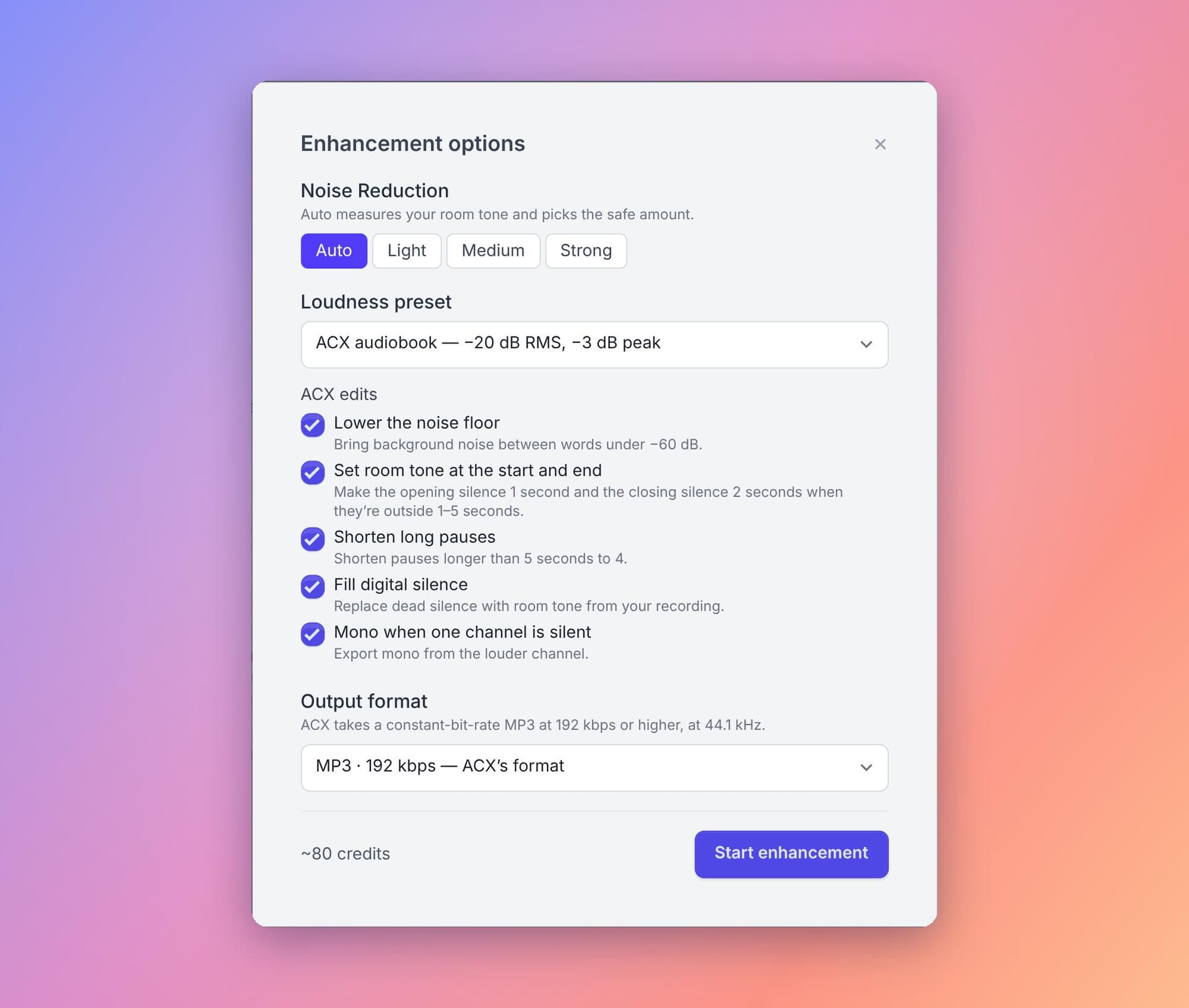
- On the Dashboard’s Generate Report card, open Check against and choose Audiobook from the built-in standards.
- Upload your chapter files. Each one gets its own report and verdict.
- To make Audiobook the standard for everything in the workspace, open Settings → Standards and click Set as default on it.
Enhance With ACX, Then Check Against Audiobook
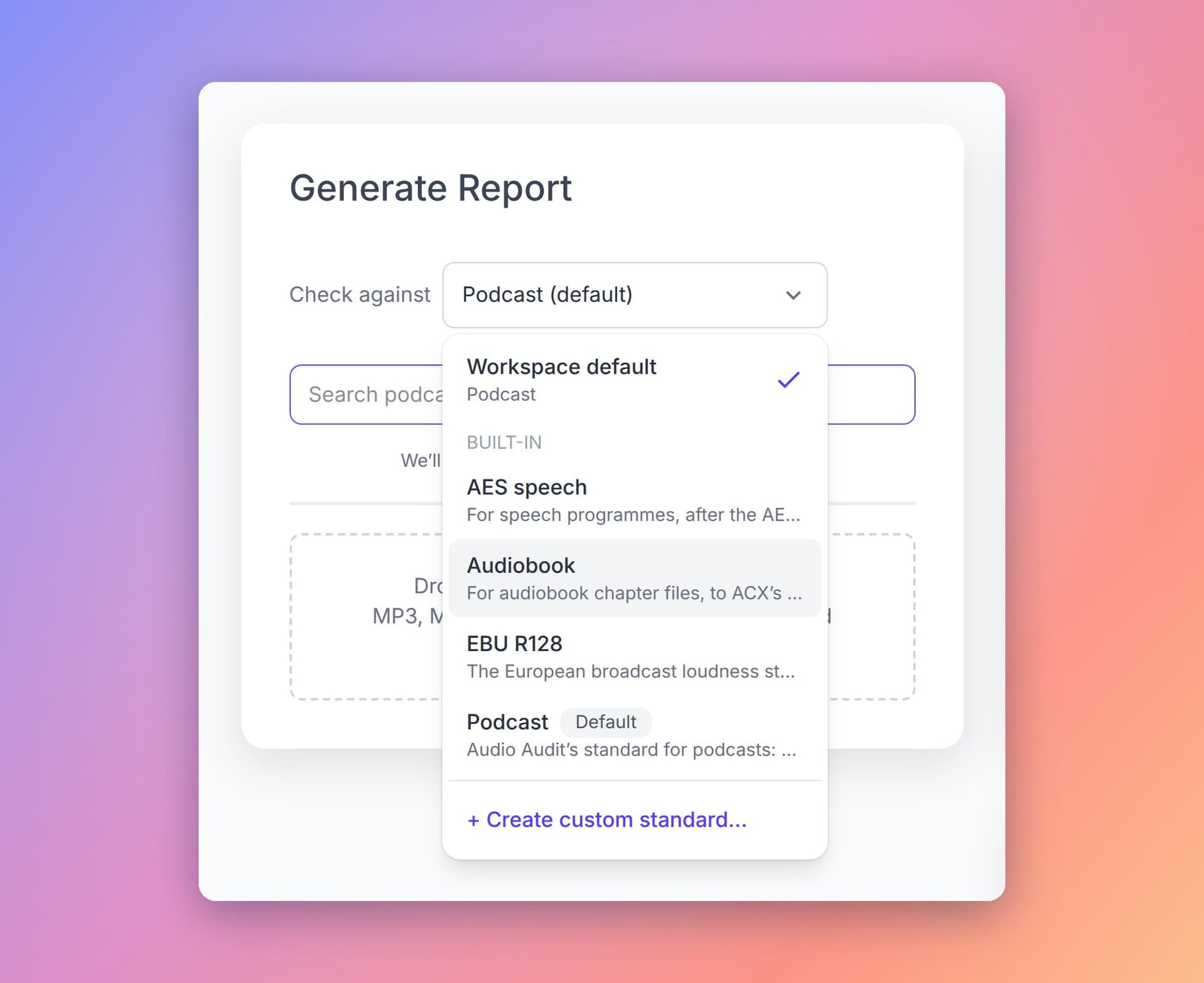
The ACX audiobook preset in Enhancements used to level to −19 LUFS, which can land outside ACX’s RMS window. We’ve rebuilt it around the Audiobook standard, so a chapter that comes out of it passes every check the audio can fix. Two things are left to you: a chapter over 120 minutes still needs splitting, and retakes or swearing still need editing out.
It now levels each chapter to −20 dB RMS, the middle of ACX’s window, and leaves headroom for the MP3 encode. Then it measures the encoded file and, if the peak or the level missed, corrects the miss and encodes once more. The output is always a constant-bit-rate MP3 at 44.1 kHz, 192 kbps unless you choose 256 or 320. Lower bit rates and FLAC aren’t offered with ACX, because ACX won’t take them.
Choosing the preset also ticks five edits. Untick any you’d rather make yourself:
- Bring the noise floor under −60 dB.
- Set the room tone to 1 second at the head and 2 at the tail, when either is out of range.
- Shorten pauses of 5 seconds or more to 4.
- Replace digital silence with the file’s own room tone.
- Make the file mono when one channel is silent.
Every join those edits make is crossfaded so it doesn’t click, and chapter markers move with any cut.
Then check the enhanced file against Audiobook. The Enhancing Audio guide covers the other enhancement options.
Frequently Asked Questions
If a chapter passes Audiobook, will ACX accept it?
It won’t be turned away for the technical specs we check: level, peaks, noise floor, format, length and room tone. ACX’s QA team also listens to the book, though. They check for mouth noise, plosives and clicks, for opening and closing credits, a retail sample and one chapter per file, and for levels that stay even across the whole book. A passing report means the numbers are right, but someone still has to listen to the performance.
Can I check a WAV master?
Yes. A WAV gets a full report, and the level, peak and noise floor results are the ones that matter at that stage. It will fail the bit rate check, because ACX only takes MP3. When the master is ready, run it through the ACX preset to get a 192 kbps MP3 and check that file.
Can I check a whole book at once?
You can upload every chapter in one go, and each one gets its own report and verdict. There’s no single result for the whole book yet. That’s the next thing we’re looking at (see below).
Does the ACX preset change my original file?
No. An enhancement makes a new file for you to listen to and download, and your upload stays exactly as it was. If you’d rather make an edit yourself, such as trimming the room tone, untick it before you start.
Does it work for Spotify for Authors and other platforms?
ACX has the strictest spec of the big audiobook platforms, so a chapter that passes Audiobook will usually pass elsewhere too. If a distributor has its own house spec, duplicate Audiobook and change the limits to match.
Try It on Your Next Chapter
Choose Audiobook under Check against, upload a chapter you’ve already sent to ACX, and see whether the two verdicts agree. If they don’t, tell us in the feedback box at the bottom of the report. Narrators’ reports are how we tune these checks.
What’s Next
A book is many files, and today each chapter is its own report. One narrator asked us for a way to keep a book’s chapters together in a project, with a result for the whole audiobook as well as one for each chapter, and that’s the next audiobook feature we’re looking at. It would also let us check what ACX judges across a whole book, such as every chapter being mono or every chapter being stereo, and levels staying consistent from the first chapter to the last.
If you narrate audiobooks, you might also like Punch Track, a browser-based recording platform we’re building for audiobook narration.
For every limit in the Audiobook standard, see the Standards guide. The figures above follow ACX’s audio submission requirements at the time of writing, so check there for any changes.
Photos courtesy of Dan LeFebvre