Unwanted Words and Expected Words
 Damian Moore, Last updated: 4 November 2026
Finds words or phrases your standard doesn’t want said, such as a competitor’s name, and shows where each one occurs.
Some words should never make it into an episode, and some must always be there. Unwanted words and Expected words are two checks that you set up yourself with your own lists, so Audio Audit can tell you when a phrase you didn’t want was said, or when one you needed was missed.
Two checks, your own lists
Unwanted words fails when any word or phrase on your list is said. It’s for things like:
- a slogan or tagline you’ve retired
- a competitor’s name
- an old show name from before a rebrand
- something a guest asked you to keep out of the episode
- words your network doesn’t allow, beyond the swear words our Profanities check already looks for
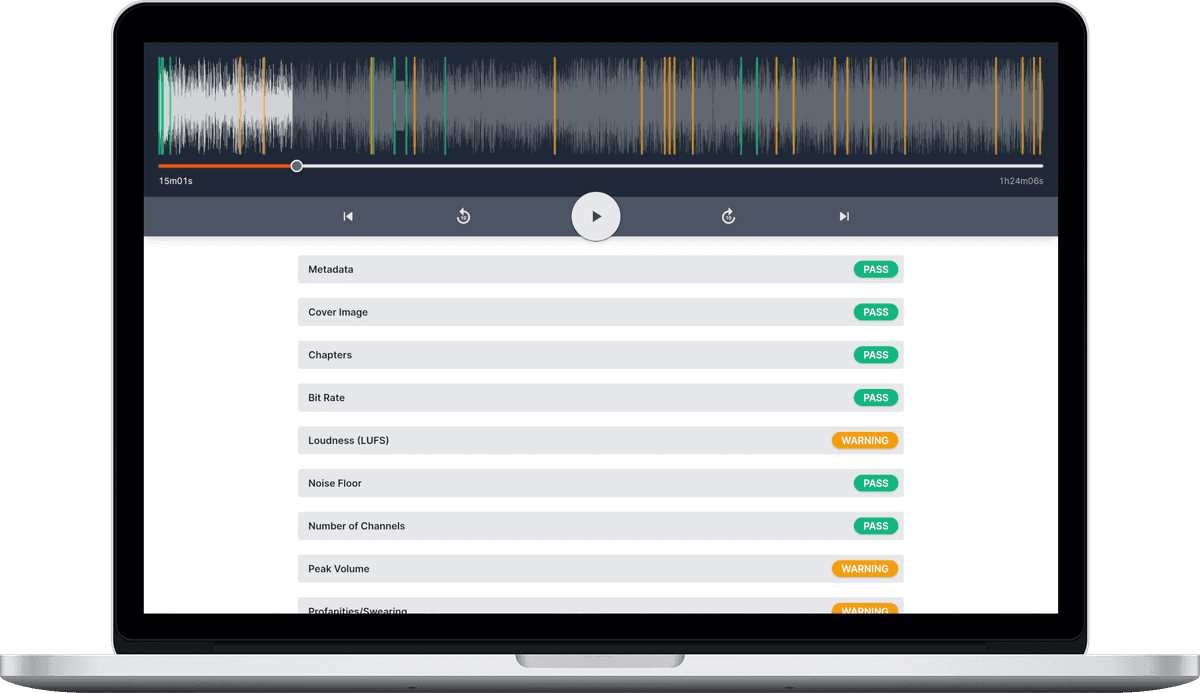
Every occurrence is timestamped, shown as an amber marker on the player and underlined in the transcript, so you can jump straight to it and hear it in context.
Expected words is the mirror image: it fails when a listed phrase is never said. Use it for the things that have to be in every episode, such as:
- a sponsor read
- a promo code
- a membership pitch
- a legal disclaimer
The result lists every phrase you entered, with timestamps for the ones that were found and “not found” for the ones that weren’t. A missing phrase has no moment in the audio to point to, so it only appears in the check itself, not as a marker on the player.
Turning them on
Both checks are Off in every built-in standard, because they only make sense once you’ve told them what to look for. To use them, create your own standard in Settings → Standards (Owners and Admins can do this) and set either check to Required or Informational. Each has a box where you type one word or phrase per line. Custom standards work on every plan, including Free.
The lists follow a few simple rules:
- up to 50 words or phrases per list, each up to 50 characters
- matching ignores capitals, so “acme” also finds “Acme”
- matching is on whole words, so “Ford” won’t match inside “afford”
- blank lines and repeats are dropped when you save
- a check that’s turned on needs at least one entry in its list
They work from the transcript
Both checks search the episode’s transcript, so while either one is Required or Informational, the standard’s Transcript option stays switched on. Every built-in standard includes the transcript anyway, and it’s charged once per report however many checks use it.
Because the checks read what the transcription heard, they’re only as good as the transcription. Names, brands and made-up words are the most likely to come out spelled differently from how you’d write them. We recommend:
- spelling each entry the way it’s likely to be transcribed, not the way it looks on your logo
- adding variants when you’re not sure, for example both “acme.com” and “acme dot com”, or a name with and without a space
- checking the transcript of a recent episode to see how a sponsor or guest name actually comes out
Our transcripts also label who is speaking, which helps when you want to see who said a flagged word: see podcast transcripts with speaker names.
Should unwanted and expected words be Required or Informational?
Required checks decide whether a report passes or fails. Informational checks are shown and flagged, but never fail the report.
If a missing sponsor read would cost you money, make Expected words Required. A report without the read then fails, and if you’ve set Report emails to Failures only, that’s exactly the report that emails you, while passing episodes stay quiet. For softer house-style rules, such as an old show name you’d rather not hear, Informational is often enough: you’ll see the hits without the report failing.
Example: one standard per show
Say you run a small network with three shows, each with its own sponsor. You might:
- Create a standard for each show, starting from the built-in Podcast standard with ”Add standard”.
- In each one, turn on Expected words as Required with that show’s sponsor read and call to action, for example “brought to you by Acme” and “like and subscribe”.
- Turn on Unwanted words as Informational with the show’s old name and any competitor brands its sponsor wouldn’t want mentioned.
- Assign each standard to its show from the show’s settings page.
From then on, every new episode in a show’s feed is checked against its own lists. A workspace can have up to 10 custom standards, and changes to a standard only apply to new reports, so past results never change.
For everything else a standard can do, see our guide to standards.
Photos courtesy of Kyle Vaughn