Podcast Report Emails Only When Something Fails
 Damian Moore, Published: 20 October 2026
A network running fourteen daily shows gets about ten report emails a day from us, and most of them say the same thing: this episode is fine. One technical director told us he’d stopped opening them. What he wanted was the reverse — “if I get an email, something’s wrong.”
That’s now a setting. You can choose to get report emails only when a report fails, and passing reports stay silent. It’s live for every workspace and every plan.
Three Choices for Report Emails
The Report emails setting has three choices. Every report sends an email for every completed report, as before. It stays the default, so nothing changes until you pick something else.
Failures only sends one only when a report fails a Required check in its standard. Informational checks never trigger one, so an episode with a minor note and nothing wrong stays quiet. Never turns report emails off, for people who follow results through the dashboard, the API or an integration instead.
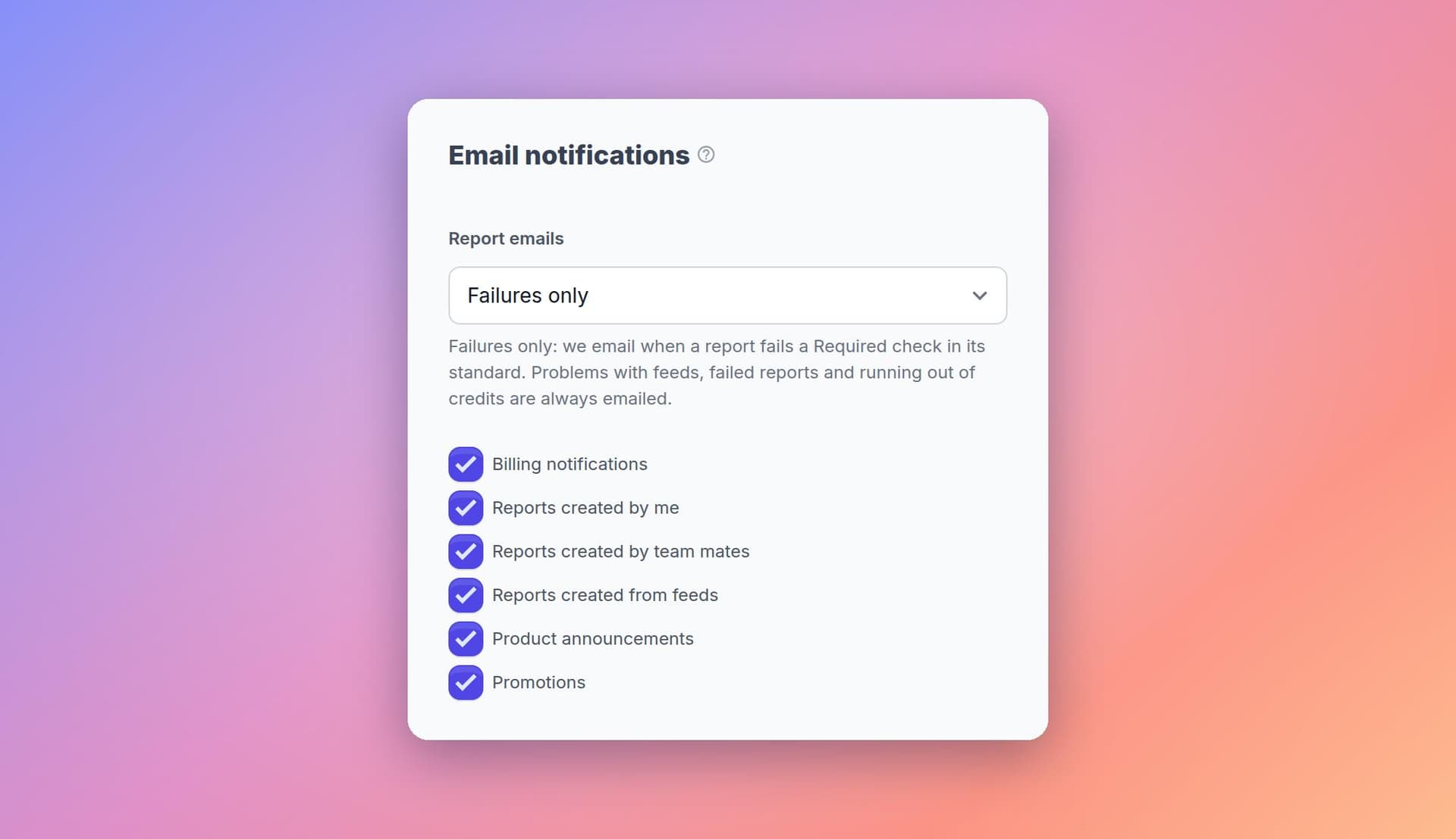
“Failures only” works best with a standard that marks just your must-haves as Required: your loudness range, the explicit flag, your format specs. Then an email from us means something on that list needs fixing.
Set It Per Show When You Need To
The setting applies to every show you get emails for, but you can override it one show at a time. A producer can hear about every report for the one show they’re launching this month and only failures for the rest, or mute a show they don’t work on.
Emails You Still Get Either Way
Three emails arrive whatever your setting is, because each one means we couldn’t check something. We email when a feed we check automatically can’t be read any more (at most once per feed every 24 hours), when a report fails to finish, and when an upload isn’t checked because the workspace has run out of credits.
Turning emails down to failures only never means a broken feed goes quiet without you hearing about it.
Emails That Say What Failed
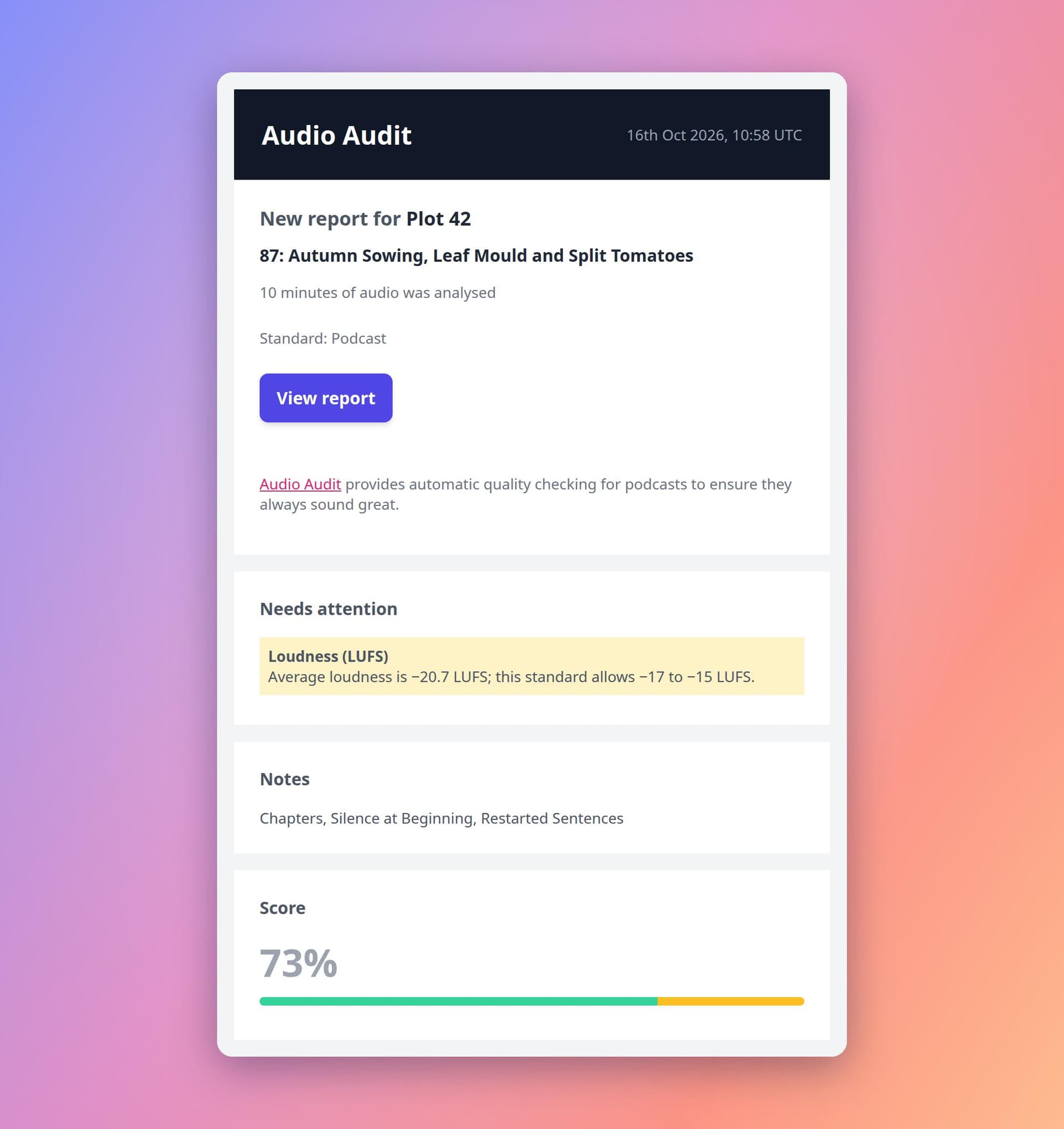
The report email itself has changed too, for everyone. The subject now starts with the verdict — Failed: or Passed: followed by the podcast and episode — so you can sort your inbox without opening anything. Inside, the email names the standard the report was judged against and lists every Required check that failed, each with its message, rather than the first three check names. Informational checks that didn’t pass are listed by name under Notes, so you can see them without them counting as a failure.
Where to Find It
Go to Settings → Profile & notifications and find Report emails in the Email notifications section. To change it for a single show, open that show’s settings and use your row in its Report notifications list.
What’s Next
We’d like to hear how “Failures only” works for you, and what you’d still want an email about.
The Account Setup guide covers every email setting, and Podcast Access and Report Emails explains who gets each show’s emails.
Photos courtesy of CHUTTERSNAP